Features

Store locator tags & filters

Let customers filter locations by the products they carry or the services they offer. Show what’s available at each location.

  • 7-day free trial
  • Free brand matching
  • Cancel anytime
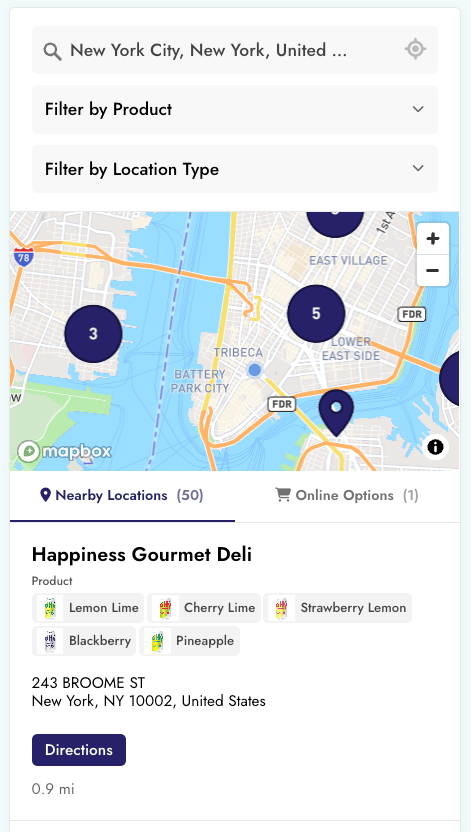
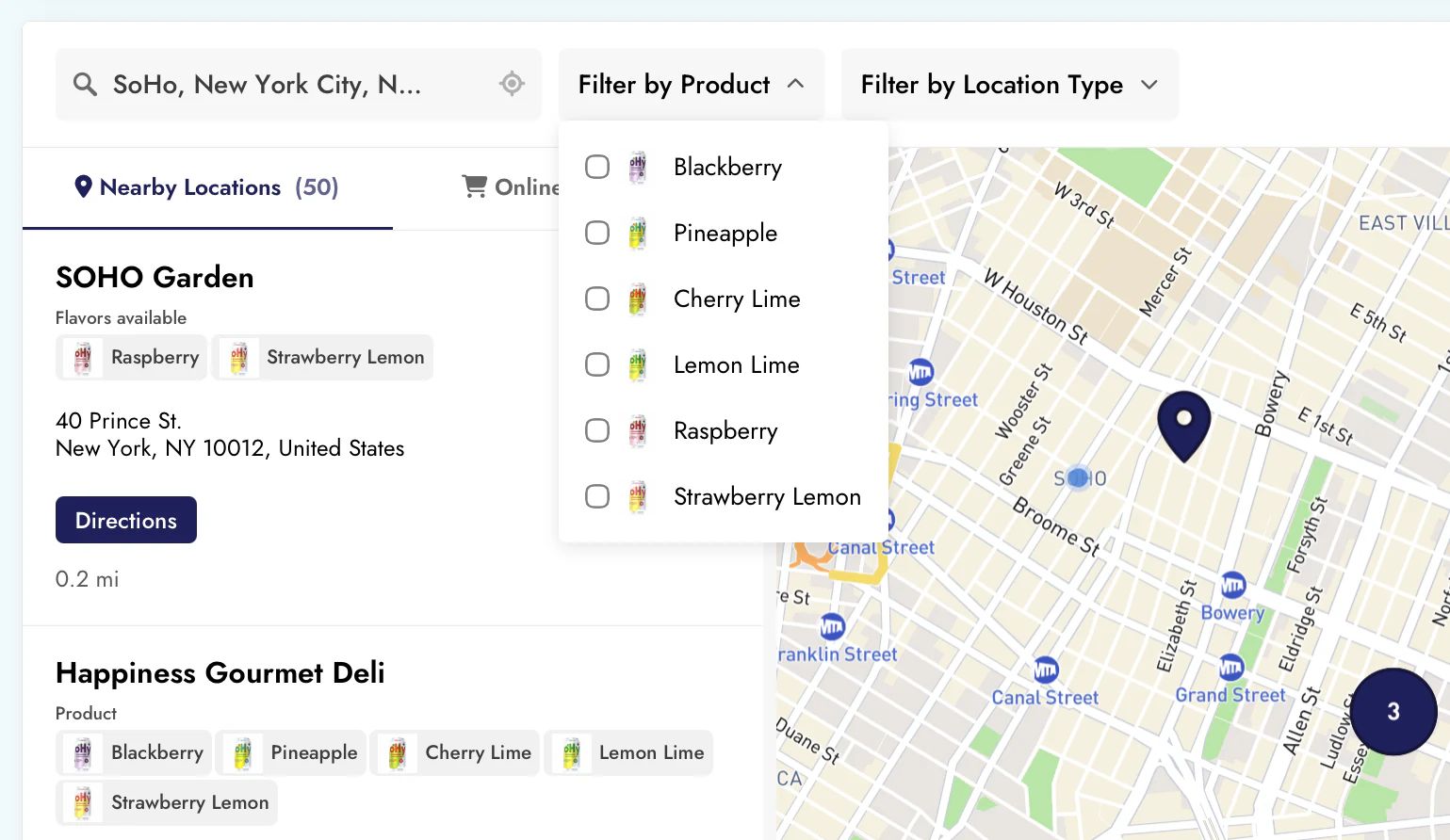
Store locator with an open product filter, product photo tags on location cards, a location type filter, and map markers.

Filter by product, service or category.

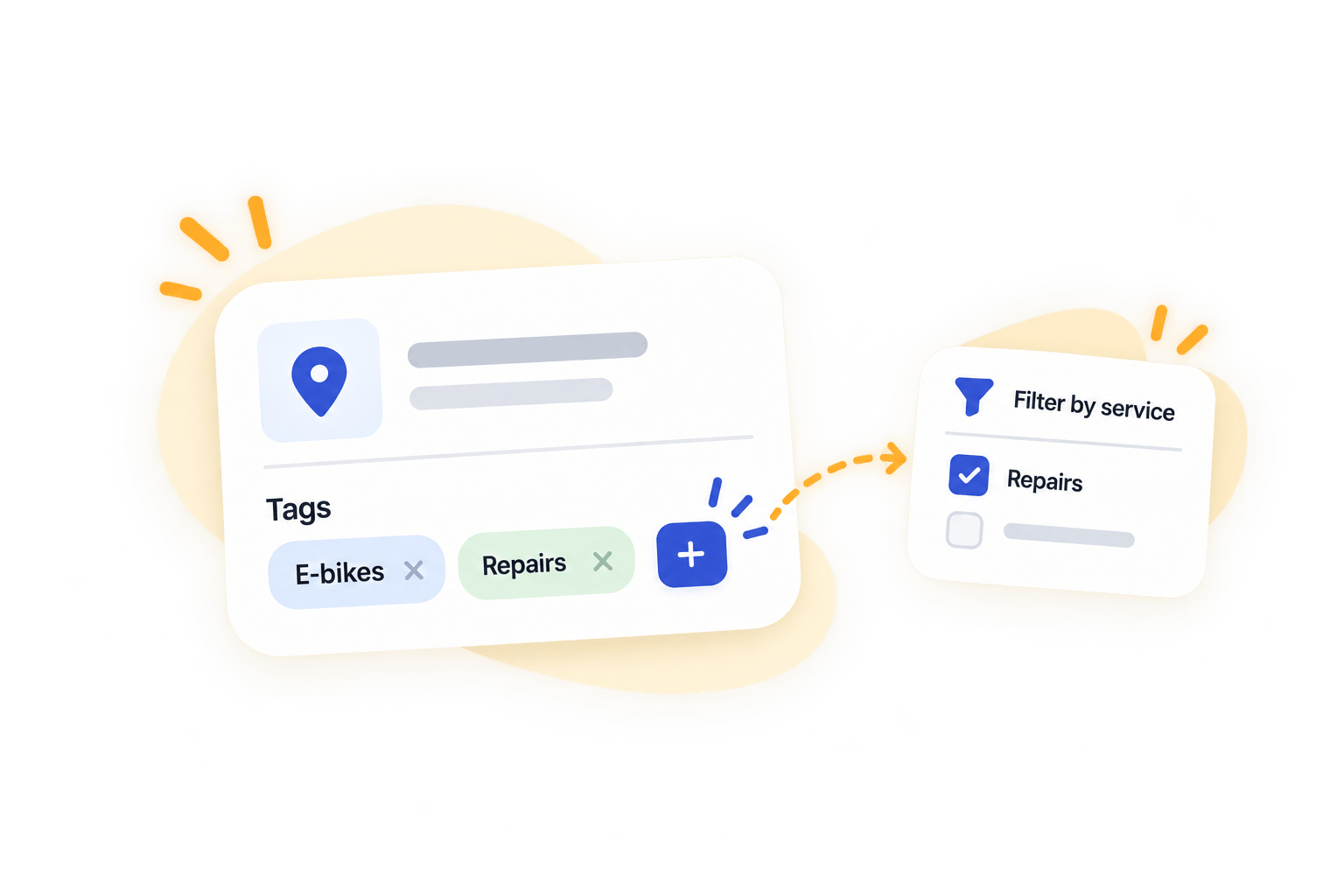
Tag locations by the products they carry, services they offer, or type of location. Customers can then filter your map to find what they need.

  • Products & brands. Help customers find stores that carry their favorite product or brand.
  • Services & specialties. Show where customers can find a service, class or specialty.
  • Location types. Separate retail stores, showrooms and service centers, or use your own categories.

Choose how your filters look. Use dropdown menus or checkboxes, with your own labels and option order. Customers can select more than one filter at a time.
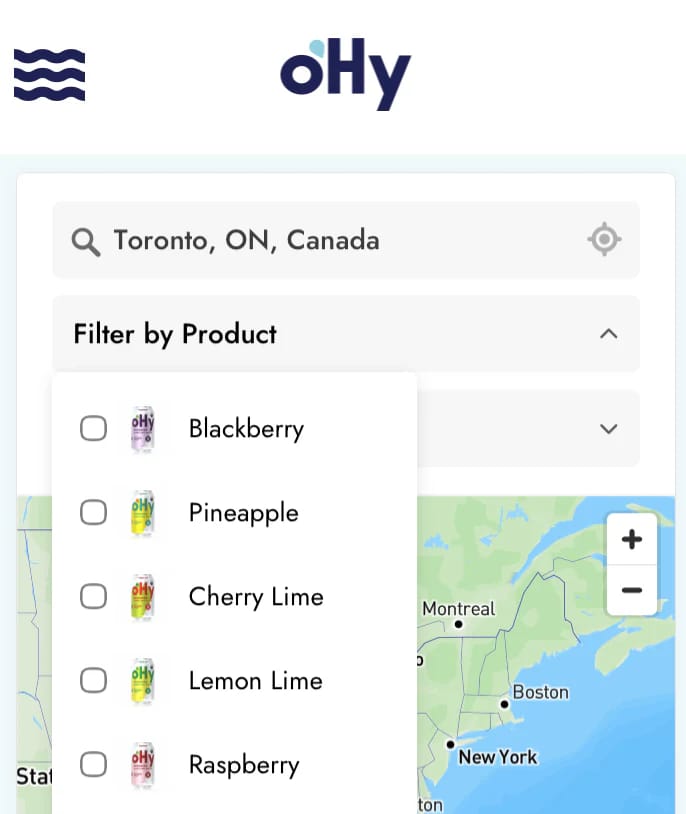
oHy product filter with drink photos beside Blackberry, Pineapple, Cherry Lime, Lemon Lime, and Raspberry.
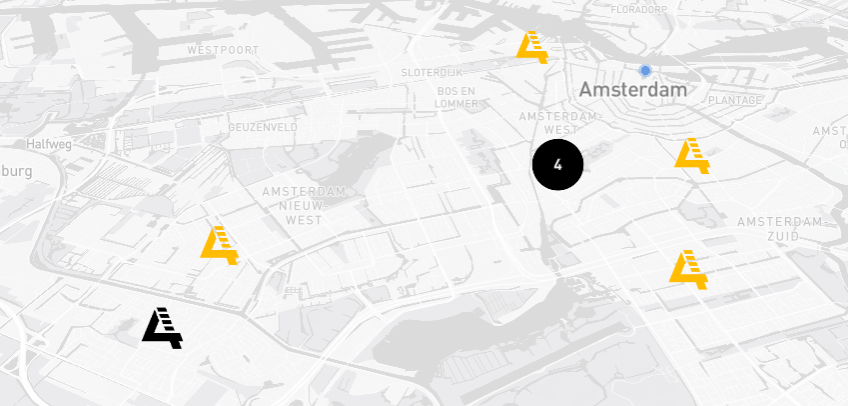
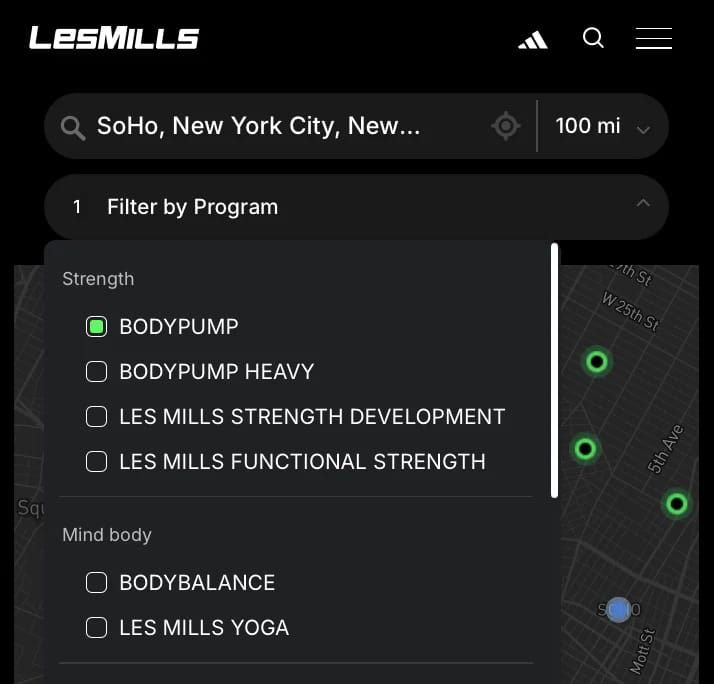
Les Mills locator with BODYPUMP selected in a program filter, classes grouped under Strength and Mind body, and green map markers.

Show what each location offers.

Display products, services, amenities, or any other details that help customers choose a location.

Use your own tags for things like coffee flavors, bike repairs, wheelchair access, or dealer certifications.

  • Text, colors & images. Add text labels, colors, icons, logos, or photos to your tags.
  • Choose where tags appear. Show them on location cards, in filters, or both.
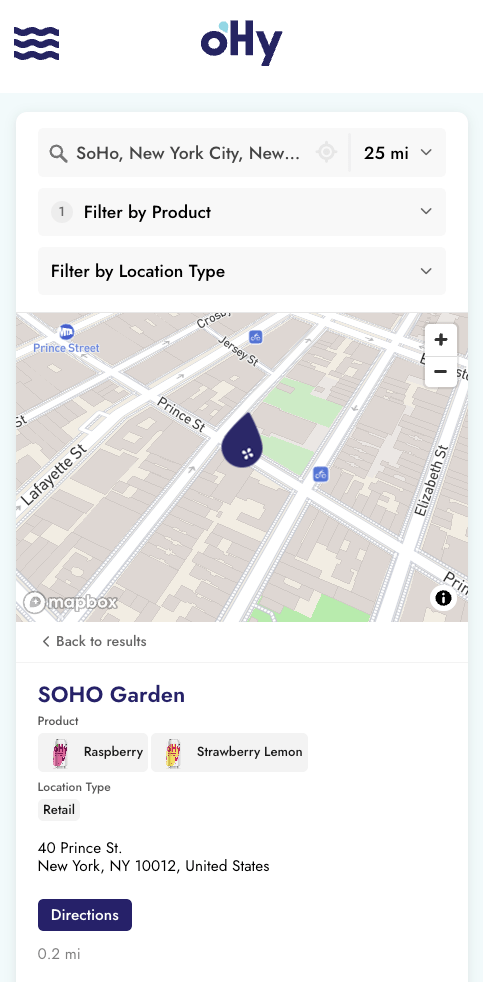
Storepoint store locator showing product photo tags for the oHy flavors carried at each location.

Customize your locator with tags.

Use the same tags to change map markers, put selected locations first, or create separate maps for each category.

Map markers by category

Give each category its own pin color, logo or image. For example, use different map markers for showrooms and retail stores.

Show selected locations first

Show premium dealers first when customers search nearby. Choose which tags get priority and how far away those locations can be.

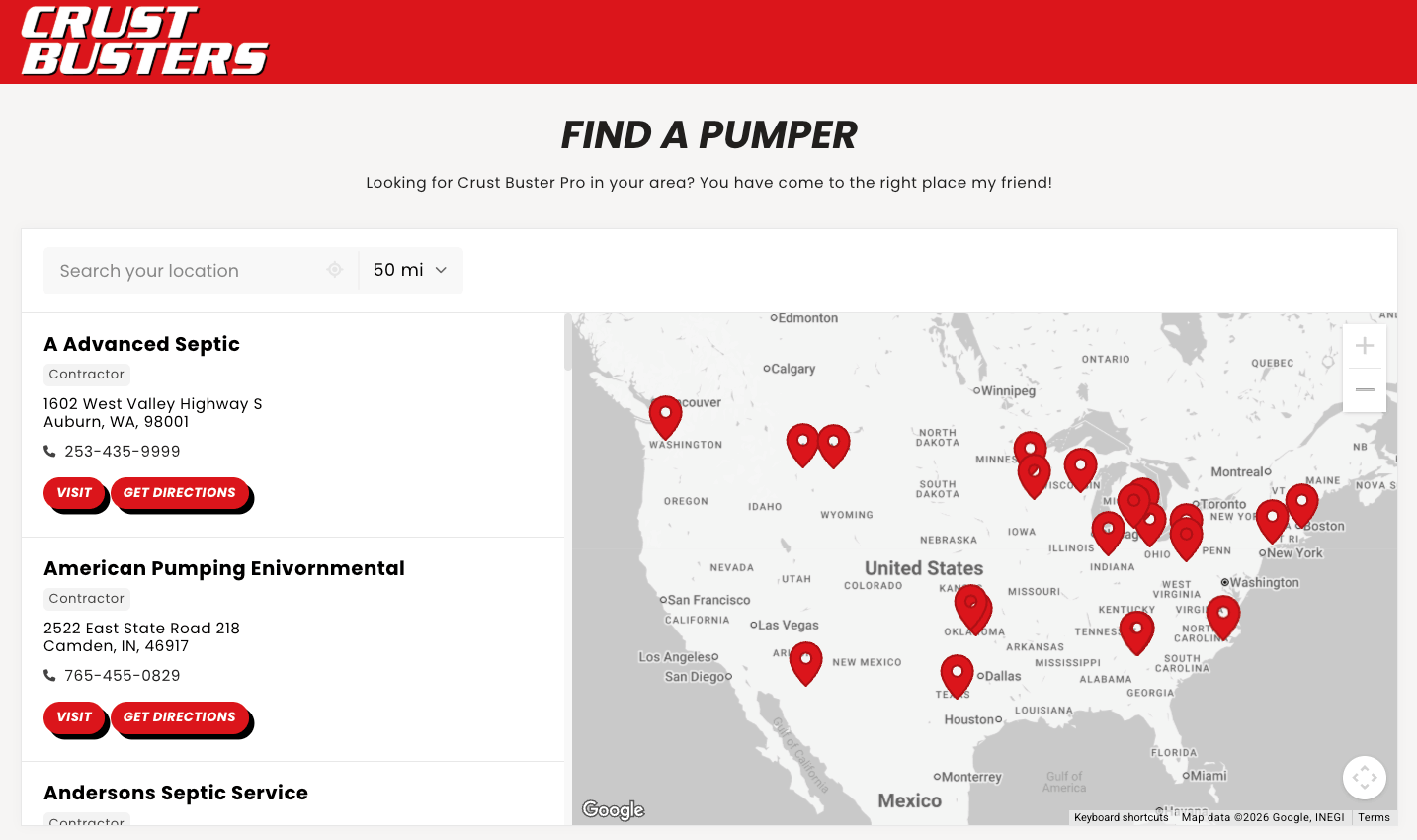
Create separate maps for each product or category.

Add a map to each product or category page. Each map shows only the locations with the tags you choose. You can manage all of these locations together in Storepoint.

Set up your store locator in three steps.

Add your locations

Add locations and tags by hand, upload a spreadsheet, or sync from Google Sheets.

Add to your website

Copy and paste the embed code into your website.

Edit any time

Update your locations or tags whenever you need to. Your store locator updates after you save or your data syncs.

Not ready yet? See our examples or contact us.

Questions

Tags & filters FAQ

Can I create a store locator with product or service filters in Storepoint?

Yes! Tag locations by the products they carry or services they offer. Customers can then filter your store locator to find what they need. You can show the same tags on location cards, with product photos, logos or text. Learn how to add filters to your store locator.

How do store locator tags and filters work together?

A tag describes something about a location, such as a product it carries. A filter lets customers choose those tags to find matching locations. You can use tags in filters, on location cards, or both. Learn about tags and filters.

Can I choose my own categories and filter labels?

Yes. Create groups such as Products, Services, or Store types, then set the label customers see for each filter. You can reorder the groups and their options, and show each filter as a dropdown or checkboxes. See how to create a filter.

Can customers use several filters at once?

Yes. For example, customers can choose a product and a service to see stores that offer both. You can require all selections to match, allow any selection to match, or combine those rules by filter group. Learn about combined filters.

Can I add product photos and colors to my tags?

Yes. Give each tag a text label, color, or image, such as a product photo, logo, or icon. Your styling appears wherever you show that tag, in filters, on location cards, or both. See how to style tags.

Can I show tags on location cards without adding filters?

Yes. You control tag visibility in filters and on location cards separately. For example, show the products each store carries on its card while customers filter by store type. See how to show tags on location cards.

Can tags control map markers and the order of results?

Yes. Set map icon rules to give locations with a particular tag their own pin color or image. Use priority sorting to show tagged locations first within a distance you choose. Set up map icons by tag or explore priority sorting.

Can I create separate maps for different products or categories?

Yes. Create a map that shows only locations tagged with a product or category. Add it to the matching page on your website. Each map uses the same location list in Storepoint. You can also share a link with filters already selected. Create a filtered map or share a filtered link.

How do I add or update tags?

Edit a location’s tags and save, or include tags in a spreadsheet import. If you use a connected source such as Google Sheets, update the tags there. Your locator uses the new details after the import or sync runs. See how to add tags.

Create a store locator with your own filters.

Choose your categories and how you’d like them to look. Our team can help match your locator to your website, free with every plan.

  • 7-day free trial
  • Free brand matching
  • Cancel anytime