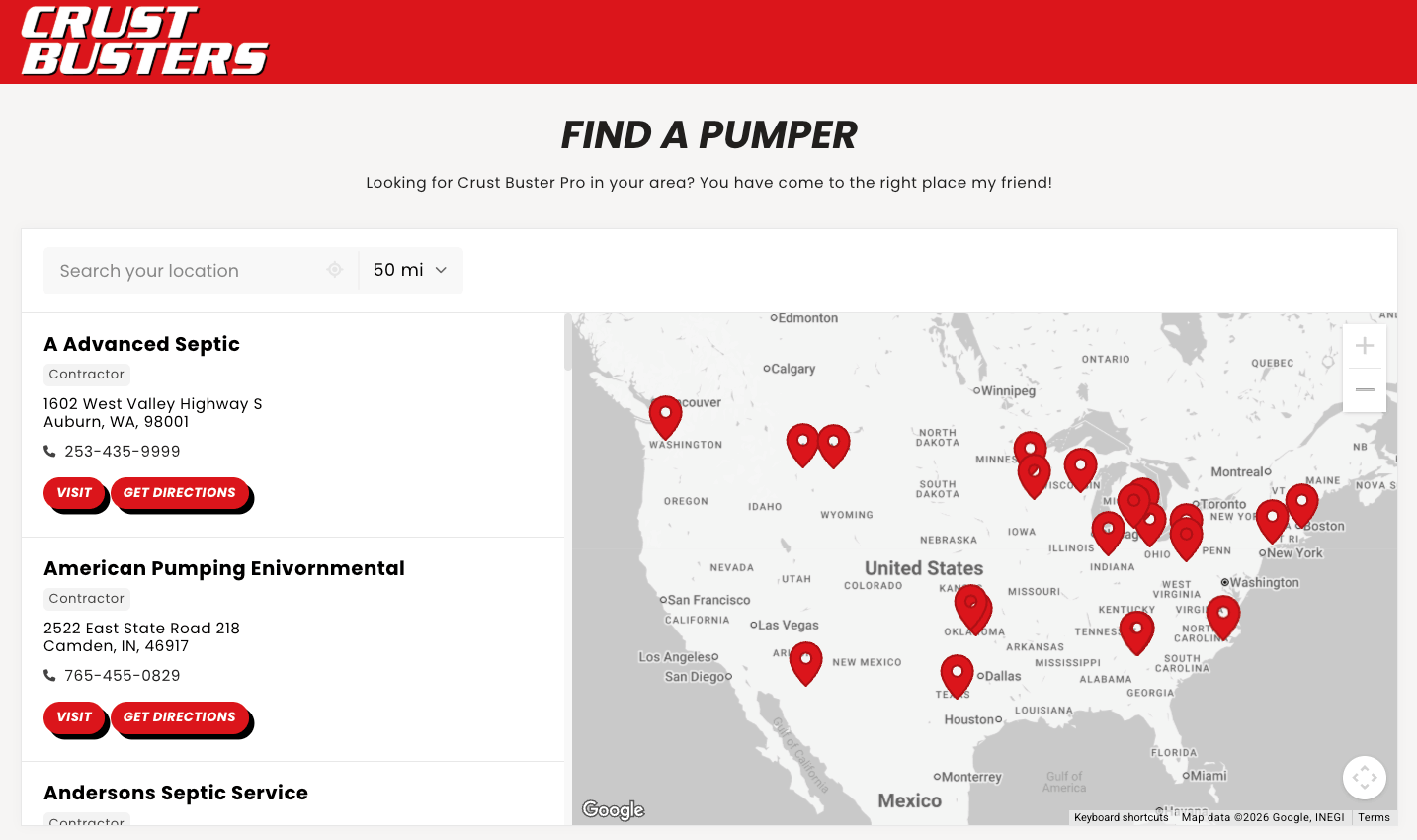
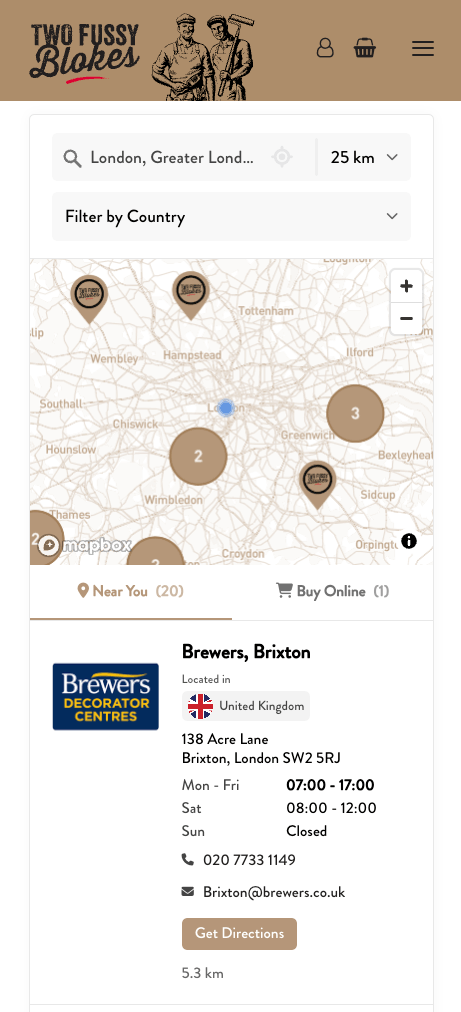
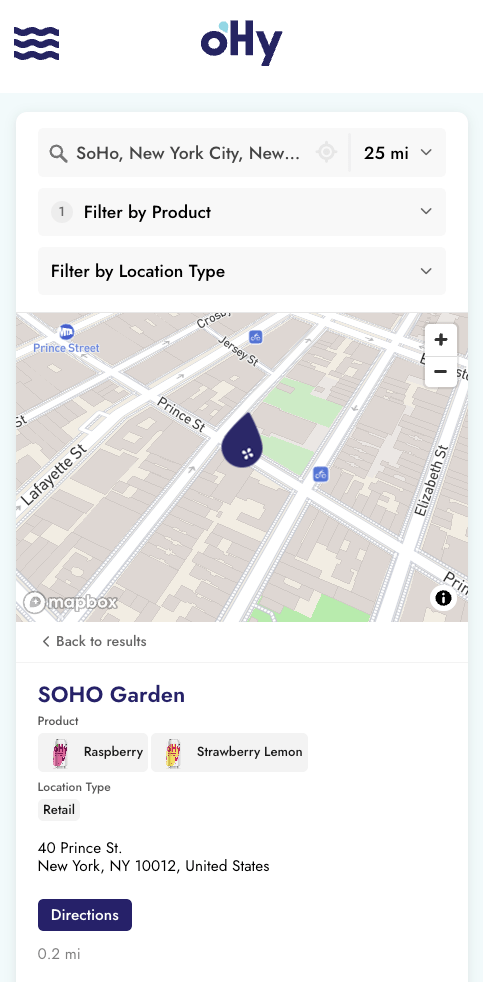
Map markers are the icons that pin your locations on the map. Customize them to match your brand, upload your own images, and show different icons for different brands, dealers, location types, or any group you tag.
The default marker is what shows for all your locations unless you set up conditional markers based on tags. You have two options for your default marker: use the standard pin icon with a custom color, or upload your own custom icon.
- Go to Widget Settings → Map Style & Markers
- Under Default Map Marker Icon, select Use Standard Icon and Choose Color
- Pick a color from the palette or enter a hex code
The standard icon is a classic map pin shape that works well at any zoom level. If you don't choose a custom color, markers will use your widget's accent color (set in Appearance).
If you want to use your own marker image:
- Go to Widget Settings → Map Style & Markers
- Under Default Map Marker Icon, select Upload Custom Icon
- Upload a PNG image
For best results, use PNG images with transparent backgrounds. The marker anchors from the bottom center, so design your icon to point downward if you want it to indicate a specific spot on the map.
Our free marker generator creates clean PNG markers in your brand colors in a few clicks. Use it for your default marker or for individual marker rules below.
You can adjust the size of your markers by setting the Map Marker Icon Size in pixels. The default is 50px. Larger markers are more visible but may overlap when locations are close together. Smaller markers are cleaner but can be harder to tap on mobile.
When you have many locations close together, the map can become cluttered with overlapping markers. Clustering groups nearby markers into a single circle that shows a count.
Clustering pays off when locations are dense at common zoom levels:
- A coffee chain with 20 stores in one downtown
- A franchise network with multiple locations per city
- A dealer network where regional clusters of dealers sit close together
If your locations are spread out across states or countries, you may not need clustering at typical zoom levels.
- Go to Widget Settings → Map Style & Markers
- Check Enable Map Marker Clustering
- Choose a cluster color, or leave it to use your accent color
When clustering is enabled, zoomed-out views show clusters. As users zoom in, clusters break apart to reveal individual location markers. Clicking a cluster zooms the map to show its locations.
Clusters appear as colored circles with a number indicating how many locations are grouped together. The cluster color can match your accent color or be set to a custom color.
You can set up rules that show different markers based on which tags a location has. Different pin colors for different services, restaurant pins for restaurants and retail pins for retail, different icons based on location types and more. Customers see the difference at a glance. Prefer a walkthrough? See the step-by-step guide.
For example:
- Flagship stores show a gold star marker
- Express locations show a smaller icon
- Premium dealers show a different color than standard dealers
- Locations with a specific product use that product's icon
Each rule has two parts:
- Marker Style: Either a color (which creates a colored pin icon) or a custom uploaded image
- Tag Condition: Which tags a location must have for this rule to apply
When the widget renders the map, it checks each location against your rules. If a location matches a rule's tag condition, it uses that rule's marker. If no rules match, the location uses your default marker.
- Go to Widget Settings → Map Style & Markers
- Scroll to Custom Map Marker Icons by Tag
- Click Add Marker Rule
- Set the marker style:
- Choose a color using the color picker, OR
- Upload a custom PNG image
- Select which tags are required for this marker to appear
- Click Save Settings
You can add multiple rules. Each rule can require multiple tags.
When you select tags for a rule, the location must have all of the selected tags for the rule to apply. This is AND logic.
For example, if you create a rule that requires both "Premium" and "Certified" tags:
- A location with just "Premium" → does NOT match, uses default marker
- A location with just "Certified" → does NOT match, uses default marker
- A location with both "Premium" and "Certified" → matches, uses this rule's marker
Rules are evaluated in the order they appear in the list. The first matching rule wins. This lets you create specific rules that take priority over more general ones.
For example, you might have:
-
Premium Partners (requires:
premium-partner) → Gold star icon -
Certified Dealers (requires:
certified) → Green pin -
Authorized Dealers (requires:
authorized) → Blue pin
A location that has both premium-partner and certified tags will get the gold star (rule 1), not the green pin (rule 2), because rule 1 appears first and matches.
You can drag rules to reorder them and change priority.
A manufacturer with tiered dealers might set up:
| Rule | Required Tags | Marker Style |
|---|---|---|
| 1. Premium Partners | premium-partner |
Gold star image |
| 2. Certified Dealers | certified |
Green colored pin |
| 3. Authorized Dealers | authorized |
Blue colored pin |
Customers can instantly see which dealers are Premium vs Certified vs Authorized right on the map.
A retail brand might show which products each store carries:
| Rule | Required Tags | Marker Style |
|---|---|---|
| 1. Flagship (All Products) | flagship |
Brand logo image |
| 2. Widget Pro Available | widget-pro |
Red colored pin |
| 3. Widget Lite Available | widget-lite |
Blue colored pin |
You can use tags purely for marker rules without showing them in filters or on location cards. In your tag group settings, check both "Hide Filter" and "Don't Show In Location Details" to keep these tags hidden from customers while still driving marker rules.
When creating custom marker icons:
- Use PNG format with transparent backgrounds
- Design at 2x resolution for sharp display on retina screens (e.g., create a 100px image if you want a 50px marker)
- Point downward if your icon indicates a specific location, since the marker anchors from the bottom center
- Keep it simple since markers are small. Detailed images may not be legible at typical sizes
- Test visibility against different map styles (default, light, dark, satellite)
When choosing marker colors:
- Contrast with the map: Avoid greens and blues that blend into parks, water, or roads
- Match your brand: Use your brand colors when possible for recognition
- Differentiate clearly: If using multiple marker colors, choose colors that are easy to tell apart
- Enable clustering if you have many locations that may appear close together at common zoom levels
- Match cluster color to your overall design. The default uses your accent color which usually works well
- Consider location density: If your locations are spread out geographically, you may not need clustering
- Filters & Tags: Set up the tags that power conditional marker rules
- Priority Sorting: Boost locations with specific tags to the top of results
- Map Style & Markers Settings: Configure map themes to complement your markers