Want customers to instantly tell your locations apart on the map? With marker rules, different locations get different colors or icons. Whether you're distinguishing store formats, dealer tiers, service locations, or product availability, a quick glance at the map tells the whole story.
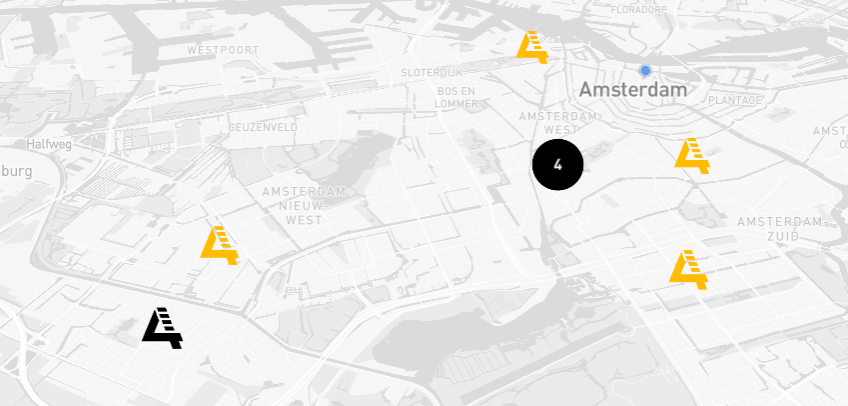
You can use simple color-coded pins or upload custom icons. Either way, it only takes a few minutes.
Before You Start
You'll need a Storepoint account. Storepoint is a store locator and dealer finder widget that embeds on your website. If you're new, start a free trial and follow the Quick Start Guide.
Start Your Free Trial See Examples
This feature uses your location tags to decide which marker to show. If your locations aren't tagged yet, you can add tags when editing a location or importing. See Filters & Tags for details.
Open Map Marker Settings
Head to Map Style & Markers in your dashboard and scroll down to Marker Rules by Tag.
Create Your First Marker Rule
Click Add Marker Rule. You'll see a simple form with two parts:
- Pick a color or upload an icon. Use the color picker to choose a pin color, or if you have a custom icon, upload the PNG instead. Either works great.
- Select which tags get this marker. Use the dropdown to pick the tag (or tags) that should display this marker. Any location with those tags will show this pin instead of your default marker.
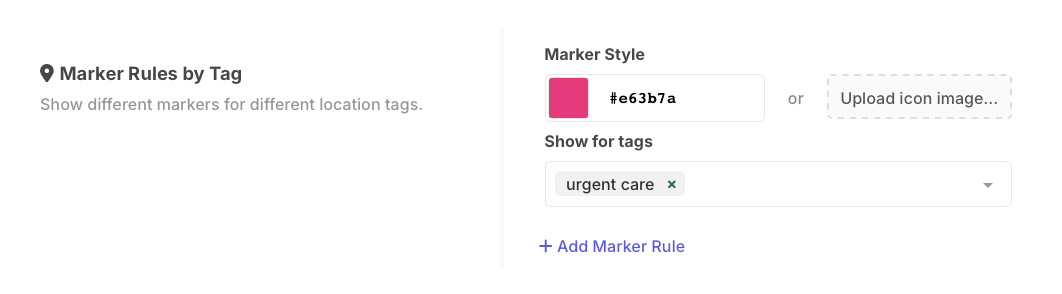
That's really all there is to it. A dealer network might set Premium to gold, Certified to green, Authorized to blue. A retail chain might give flagship stores a special icon while outlets get a different color.
Add More Marker Rules
Need more than one? Click Add Marker Rule again. Add as many as you need.
If a location matches multiple rules, the first one wins. You can drag rules to reorder them. See rule priority for more details.
Save and Preview
Click Save Settings and check your locator. Your locations should now show different markers based on their tags. 🎉
Custom Icon Tips
If you're uploading icons instead of using colors:
- Use PNG format with a transparent background
- 40-60 pixels is a good size (keep it simple since markers are small)
- Need help? Try our free marker generator
For more icon design tips, see best practices.
Common Questions
Can I use my brand logo as a marker?
Yes! Just keep it simple. Detailed logos can be hard to see at small sizes. Bold, simple designs work best.
What about locations with no matching tags?
They'll use your default map marker, which you can customize at the top of the same settings page.
Learn More
- Custom Map Markers documentation for all options including marker sizing, clustering, and advanced techniques
- Filters & Tags for setting up location categories