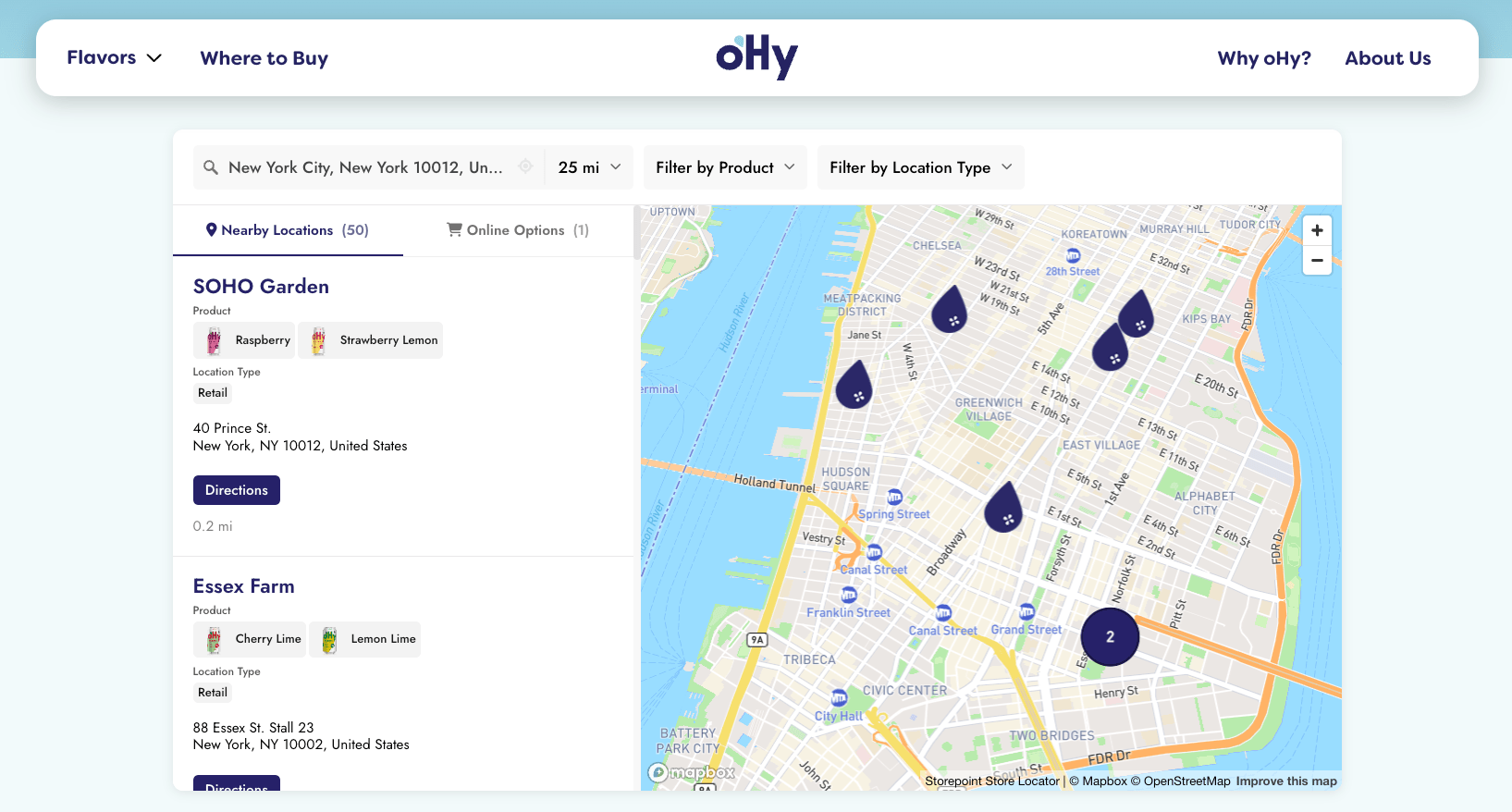
Add a searchable map of your locations to any Drupal page in a single paste. Your Storepoint locator updates straight from your dashboard whenever your locations change, so the site you built stays exactly as you built it.
Use it as a store locator, dealer map, where-to-buy page, restaurant finder, or provider directory for clinics, salons, and other service businesses. Drops into a Basic Page or a Custom Block using Drupal core, on any theme.
Start your free trial See examples
Step 1: Set up your locator
- Create a Storepoint account and follow the prompts (you'll pick a map provider and a few basics), or log in if you already have one
- Add your locations: type them in, import a spreadsheet, or sync from Google Sheets
- Open Embed in the dashboard sidebar and copy your snippet
Step 2: Add the locator to your Drupal site
Two ways to do this. Pick whichever fits where you want the locator to appear.
Path A: Basic Page (a single page just for the locator)
- Go to Content > Add content > Basic page
- Title: "Store Locator", "Find Us", or "Locations"
- In the body field, click Source (or switch to the HTML view)
- Paste your locator code
- Set Text format at the bottom of the body field to Full HTML
- Save
Path B: Custom Block (use it in a sidebar, footer, or across multiple pages)
- Go to Structure > Block layout > Custom block library
- Click Add custom block
- Title: "Store Locator Widget"
- In the body, click Source, paste your locator code
- Set Text format to Full HTML, save
- Go back to Structure > Block layout and click Place block in the region where you want the locator
- Find your custom block, place it, save
Drupal's Full HTML format may need <script> added to its allowed tags before your code will save properly. Go to Configuration > Content authoring > Text formats and editors, edit Full HTML, and make sure <script> and <div> are listed under Allowed HTML tags. Limit this format to Administrator roles only.
The locator fills whatever region it sits in. For a wider locator, place the block in a full-width region of your theme, or use a page template without sidebars for your locator page.
Step 3: Clear cache, then view
Drupal caches aggressively. After saving:
- Go to Configuration > Performance
- Click Clear all caches (or run
drush crfrom the CLI) - Open the page, try a search
That's the full setup. From here, every location update flows through your Storepoint dashboard. Your Drupal site stays exactly as you built it.
Add it to the menu
- Go to Structure > Menus > Main navigation
- Click Add link
- Title: "Locations" or "Find Us"
- In the Link field, start typing the page title and pick it from autocomplete
- Save
Match your design
Style it yourself from the dashboard: map style, marker pins, colors, button shapes, layout. Full CSS access is open on every plan.
Send us your Drupal site link and we'll match the locator to your design. Fonts, colors, layout, button shapes. Free with every plan. See examples →
Common questions
Which Drupal versions does this work on? Drupal 10 and Drupal 11 both use the same Basic Page and Custom Block features, so the install above applies to both.
Hit a snag?
Send us a note at [email protected]. We answer ourselves and we know our way around Drupal.
Keep going
- Filters and tags for narrowing by service or category
- Map styles and custom pins from the dashboard
- Custom CSS for total control
- Embed options for filtered or multilingual locators