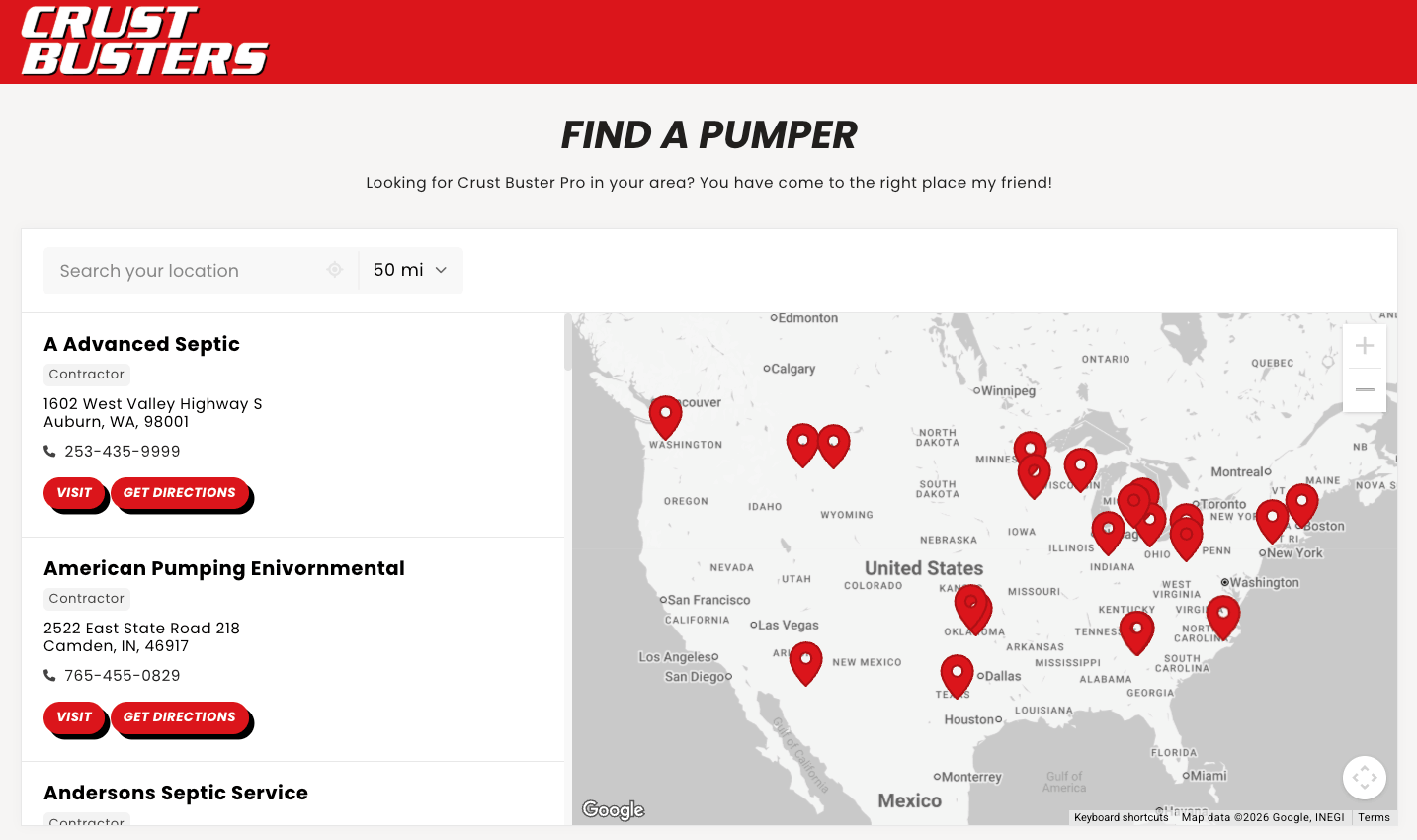
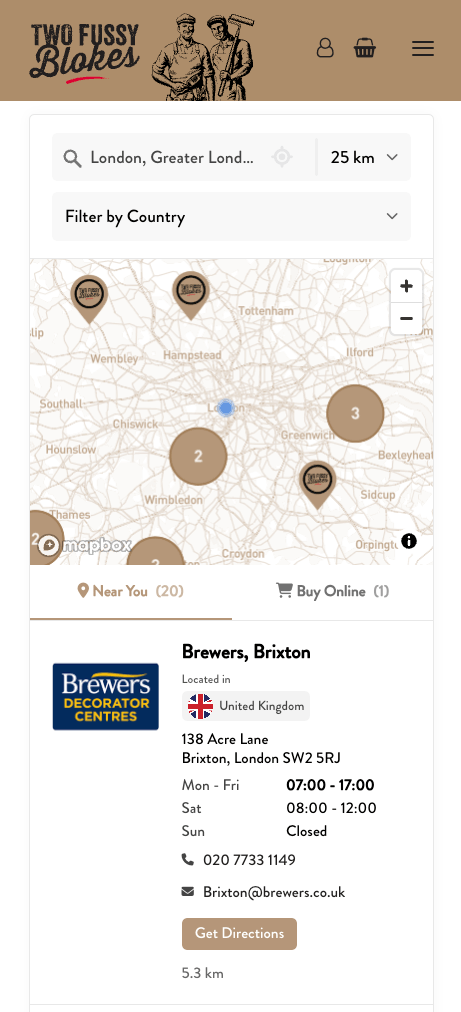
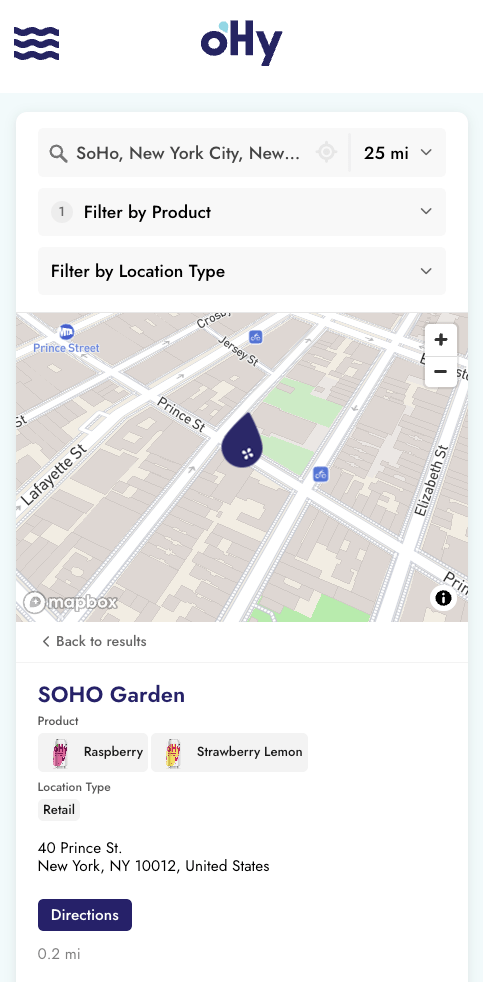
A "Find in Store" tool on a product page shows shoppers exactly which retailers carry that product. They can see nearby stockists right on the page, or jump to a pre-filtered map with one click.
This is a sub-guide of Where-to-Buy Product Locator. If you don't have a main where-to-buy page set up yet, start there first. This page picks up where that one ends, with two simple ways to add the same locator to individual product pages.
Start a free 7-day trial See examples
7-day free trial. Plans start at $25/month after.
Both options take less than 5 minutes per product line. Pick whichever fits your page design.
Option 1: Embed a per-product locator on the page. Best when you want shoppers to find a nearby retailer without leaving the product page. Each product page gets its own pre-filtered embed that shows only retailers carrying that product.
Option 2: Add a "Find in Store" button or location-search form. Best when your product pages are already busy and you want a lighter touch. The button or form sends shoppers to your where-to-buy page with the product (and optionally their location) pre-filtered.
You'll need:
- A Storepoint store locator account
- Your retailers tagged by product, SKU, flavor, or whatever you want to filter by
If your retailers aren't tagged yet, follow Step 1 of the Where-to-Buy Product Locator guide. Tagging takes a couple of minutes and unlocks both options below.
Drop a pre-filtered locator on each product page. Shoppers see only the retailers carrying that exact product. The whole setup happens in your dashboard, no code beyond pasting one snippet per product page.
- Open the Embed page in your dashboard.
- Pick the product tag you want to filter by (for example, Habanero Reserve).
- Copy the pre-filtered embed snippet.
- Paste it onto that product page.
- Repeat for each product line.
That's the whole flow. The locator on the Habanero Reserve page shows only retailers carrying Habanero Reserve. The Smoky Chipotle page shows only retailers carrying Smoky Chipotle. One Storepoint account, one set of retailers, many product-specific views. See Embed Code Options for the full reference.
Two common ways to place a per-product locator on a PDP:
Inline. Drop the snippet directly into the product page, often below the product description or inside a "Where to Buy" tab or section. The locator loads quietly alongside the page and appears once it's ready, so the product page itself opens at full speed.
Popup. Add a "Find in Store" button that opens the locator in a popup or modal. Tighter footprint on busy product pages. Most themes and page builders (Shopify themes, Elementor for WooCommerce, Webflow, Squarespace, Wix, BigCommerce, Magento) include a popup or modal block you can paste the snippet into.
Most ecommerce themes already have an inline section block or a popup block for HTML. Use those, no theme code needed. If you're not sure where to paste, follow the platform-specific embed guide for your site.
Most brands tag retailers at the product level (for example, Habanero Reserve), so all sizes and colors of that product share the same product page setup. If you want finer filtering, tag retailers by SKU instead and embed per SKU.
Lighter than embedding the full locator. The button or form sends shoppers to your existing where-to-buy page with the product tag (and optionally their location) pre-filtered. They land on a focused list of nearby retailers, ready to browse.
Link a button on each product page to your where-to-buy page with the product tag in the URL. Example link for the Habanero Reserve product page:
https://yourbrand.com/where-to-buy?tags=Habanero Reserve
When a shopper clicks it, they land on your where-to-buy page with the Habanero Reserve filter already applied. They see only retailers carrying it.
One button per product page, with the matching tag in the URL. That's the whole setup.
If you want shoppers to type their zip, postcode, or city right on the product page and land on a pre-filtered map of nearby retailers, drop in a small HTML form. It can sit anywhere on the product page: sidebar, below the buy box, inside a "Where to Buy" section.
<form action="https://yourbrand.com/where-to-buy" method="get">
    <input type="hidden" name="tags" value="Habanero Reserve" />
    <input type="text" name="locate" placeholder="Enter zip, postcode, or city..." />
    <button type="submit">Find in Store</button>
</form>
Three things happen on submit:
- They land on your where-to-buy page
- The locator filters down to "Habanero Reserve" (the hidden tag)
- The locator searches their zip, postcode, postal code, or city
Replace the action URL with your where-to-buy page URL, and replace the hidden tags value with the product's tag. One form per product page.
The locate input accepts US zip codes, UK and Australian postcodes, Canadian postal codes, European postal codes, neighborhood names, cities, states, and countries. Whatever a shopper would type into the locator's own search bar works here. Adjust the placeholder text to fit your audience: Enter postcode... for UK or AU, Enter postal code... for Canada, or keep the multi-market default above for international stores.
The form is unstyled by default, so it inherits your site's styles. Add classes to match your buy-box buttons or product page typography. Same approach works with keyword, distance, and other URL parameters: see Link to Pre-Filled Search for the full list.
Both options are paste-only HTML, so any platform that lets you add HTML to a product page supports them.
- Shopify: paste the snippet or form into a Custom Liquid block, or add a section to your product template.
- WordPress / WooCommerce: use a Custom HTML block, an Elementor HTML widget, or your theme's product page hook.
- Squarespace, Wix, Webflow, BigCommerce, Magento: each has an HTML or embed block on product pages. Paste the snippet or form there.
For step-by-step instructions on each platform, see the embed guides.
Do I need a developer to set this up?
No. Both options are paste-only. The embed snippet is generated for you in the dashboard. The form is a few lines of HTML you copy and edit once per product.
Will it slow down my product pages?
No. The locator loads quietly alongside the page and appears once it's ready, so the product page opens at full speed. Buttons and forms are even lighter, since they don't load anything until a shopper clicks them.
What if my retailers aren't tagged by product yet?
Add a Tags column to your spreadsheet listing the products each retailer carries, or edit retailers in the dashboard. Once tagged, both options above work. Full setup walkthrough in Where-to-Buy Product Locator (Step 1).
Can shoppers still see all retailers, not just product-specific ones?
Yes. Keep your main where-to-buy page as the unfiltered view, and use product-specific embeds, buttons, or forms on individual PDPs. The two complement each other.
What if a product has variants like sizes or colors?
Most brands tag retailers at the product level, so all variants of a product share the same setup. If you need to filter by SKU instead, tag retailers by SKU and embed per SKU.
Yes. Separate tags with a comma: ?tags=Habanero Reserve,Smoky Chipotle. Useful for category pages that cover more than one product. See multiple tags.
Yes. Add your usual tracking (Google Analytics events, GTM, Meta Pixel) to the button or form. Storepoint's built-in analytics also reports searches and result clicks once a shopper lands on the locator.
Does this work on Shopify product page templates?
Yes. Shopify product templates accept HTML and Liquid. Paste the embed snippet or form into a Custom Liquid block, or add it as a section. Same approach for WooCommerce, BigCommerce, Magento, and every other ecommerce platform.
- Where-to-Buy Product Locator for the main where-to-buy page setup
- Filters & Tags for tagging retailers by product, flavor, or SKU
- Embed Code Options for generating pre-filtered embed snippets
- Link to Pre-Filled Search for the full list of URL parameters
- External Search Bar for adding a general search form to any page