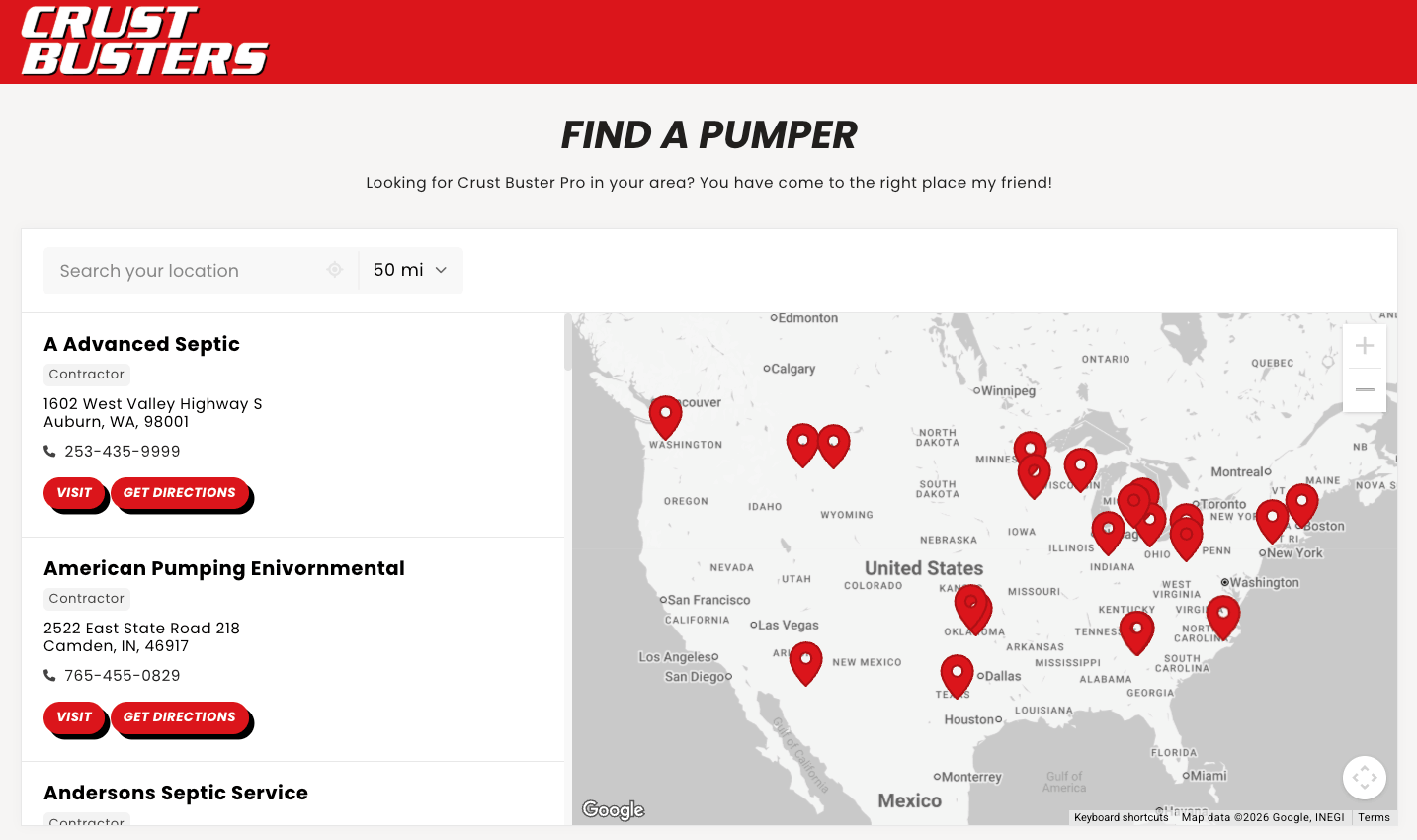
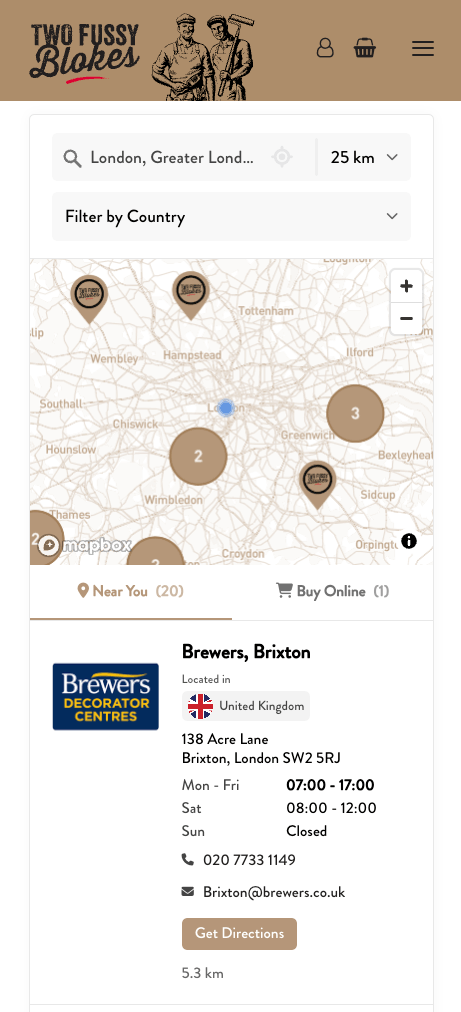
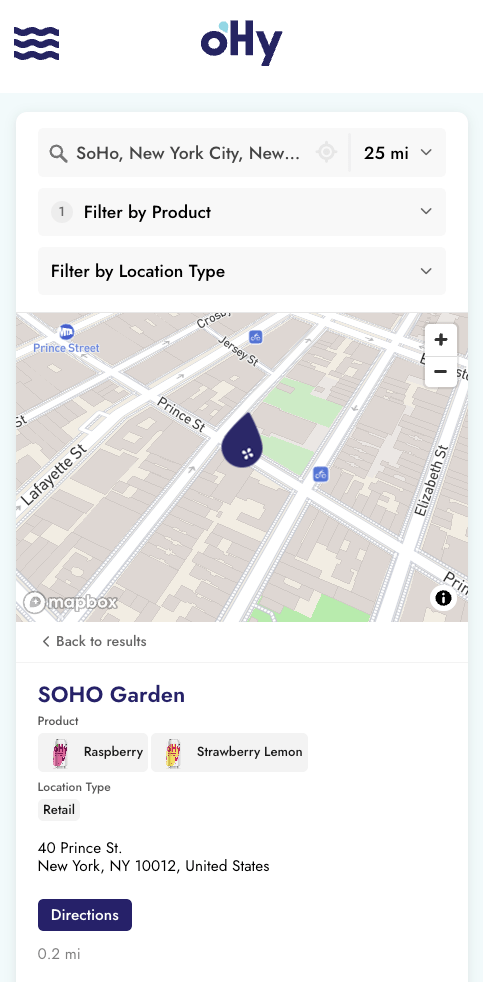
Your Storepoint store locator can update the location list as visitors explore the map. When visitors pan or zoom, the list responds to match what's visible. Locations on the map appear first, or the list filters to show only what's in view.
This creates a map-driven browsing experience similar to "search as you move the map" on Google Maps or Airbnb.
By default, the location list stays the same when visitors move the map. Turning on this feature creates a connection between the map and the list. The list updates to reflect the area visitors are viewing.
Two modes are available:
| Prioritize | Filter | |
|---|---|---|
| List behavior | Reorders locations, map-visible first | Hides locations not visible on the map |
| All locations accessible | Yes, scroll down to see the rest | Only locations on the map appear |
| Best for | Guiding attention while keeping everything reachable | Focused, map-driven exploration |
The location list reorders to show locations visible on the map first. Locations outside the current map view still appear in the list, below the visible ones.
- Visitor searches or browses the locator
- They pan the map to a new area
- Locations visible on the map float to the top of the list
- Scrolling down reveals the remaining locations
This is the lighter option. Visitors get a reordered list that matches the map, without losing access to anything.
The location list filters to show only locations visible on the map. Locations outside the current map view are hidden from the list entirely.
- Visitor searches or browses the locator
- They pan the map to a new area
- The list updates to show only locations they can see on the map
- If they pan away from all locations, the list shows a message with a button to jump back to the results area
This creates a tighter connection between the map and the list. Visitors discover locations by exploring the map directly. The list always reflects what's in view.
Locations slightly outside the visible map edges are still included. This prevents locations from popping in and out of the list as visitors make small adjustments to the map.
- Go to Widget Settings → Search & Map Functionality
- Under Update List as Map Moves, select Prioritize locations visible on map or Only show locations visible on map
- Click Save Settings
You can combine this feature with other settings to create a full "search as you move the map" experience, where visitors explore your locations entirely by panning and zooming.
Here's how:
- Set the initial view to center on the visitor. Under Initial View, select Center on user location (IP-based). This centers the map on the visitor's approximate area when they load the page. Learn more about geolocation
- Set a large default search radius. Under Radius & Limit Settings, set the Default Search Radius to a large value (like 10,000). This loads locations across a wide area so the list has plenty of results to filter from as visitors move the map.
- Hide the distance filter. Under Radius & Limit Settings, check Hide Distance/Radius Filter. Since the map controls what's visible, the radius dropdown becomes unnecessary.
- Enable filter mode. Under Update List as Map Moves, select Only show locations visible on map.
With these settings combined, visitors land on a map centered on their area with locations already loaded. As they pan and zoom, the list updates to show what's in view. The experience feels like Google Maps or Airbnb, where the map drives the results.
Enable Request GPS Location Permission alongside IP detection. Visitors get an approximate view instantly, then a precise view if they grant GPS access. Combined with map-driven filtering, this creates a smooth exploration experience from the moment the page loads.
- Auto-Detect Location: Detect visitor location to center the map
- Priority Sorting: Boost specific locations to the top of results
- Search & Filter Overview: How all search and filter features work together
- Widget Settings: Overview of all widget configuration options