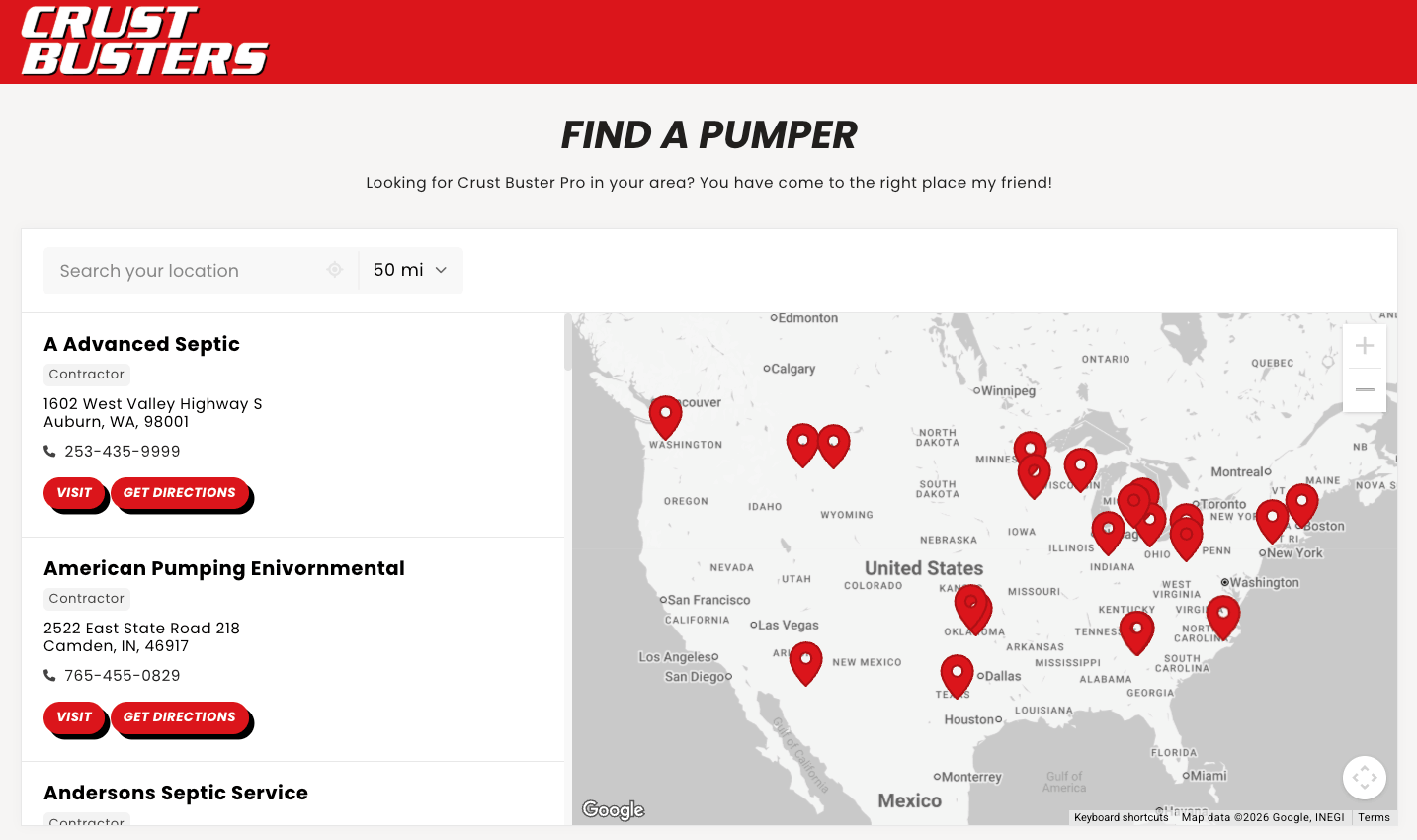
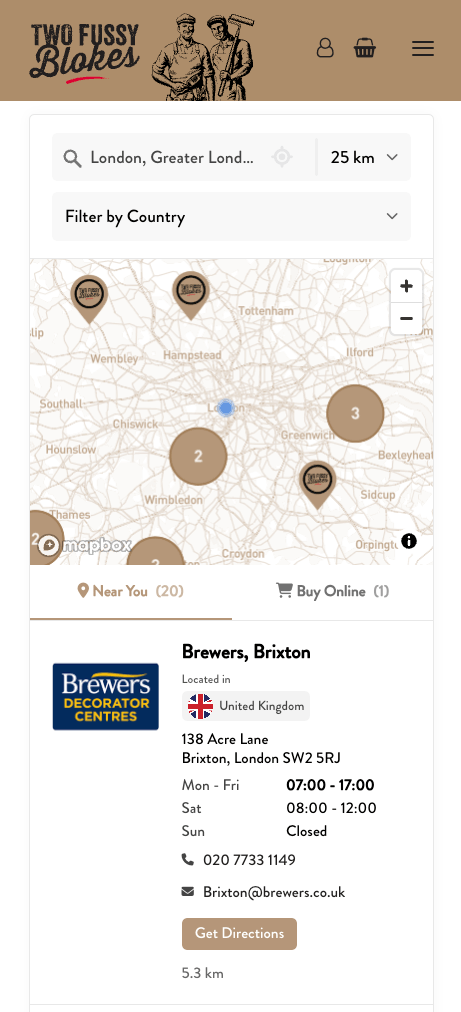
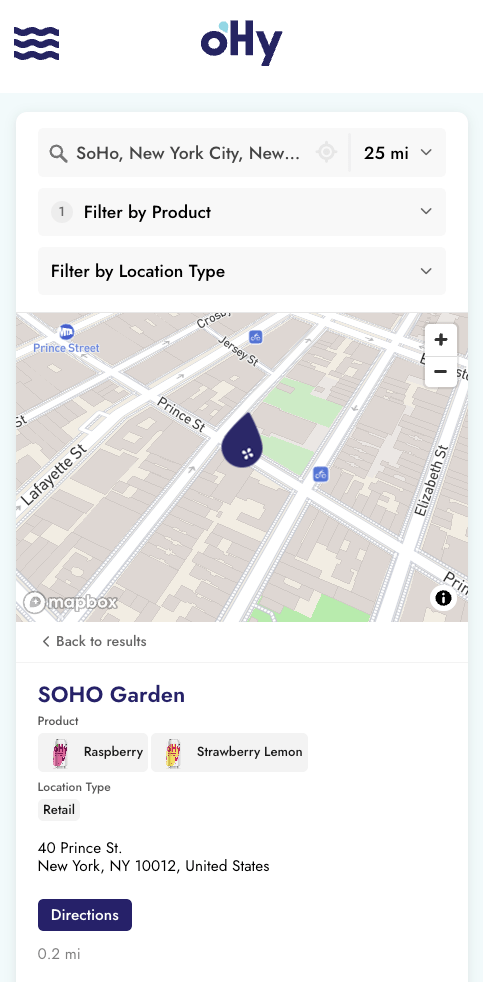
Your store locator widget arrives with sensible defaults: "Nearby Locations", "Get Directions", "Search for a location...". Every one of them is yours to change, on every plan.
Your locations might be stores, dealers, clinics, installers, or something else entirely. Storepoint works the same for all of them, so you write the words your business already uses.
Open Phrases in your dashboard. Every phrase in your locator sits in one list: buttons, day names, section titles, your filters, your tags, your custom fields.
Type your wording, click Save Settings, and your locator updates in seconds.
A few phrases are managed on the screen where they're set, like your search box placeholder or your filter names. Those rows link you straight there.
Phrases is also where you translate. Every plan lets you write your locator in the language you need, and on Pro and above you add more languages so each visitor sees the closest match. The multilingual store locator guide has the steps.
Does renaming labels cost extra?
No. Every phrase is editable on every plan.
How soon do my changes appear?
Within seconds. Save, then reload the page your locator sits on.
Can I write my labels in another language?
Yes. Pick your language in Phrases and write your wording in it. The multilingual guide covers the details.
Can I change the no-results message?
Yes, in Search & Map Functionality. It accepts {{radius}} and {{units}}, which fill in with the visitor's actual search radius: "No dealers within {{radius}} {{units}} of your search."
- Filters & Tags for naming your filter groups and tags
- Custom Fields for naming your own buttons and fields
- Multilingual Store Locator for adding more languages
- Locator Widget Settings for the rest of the settings screens