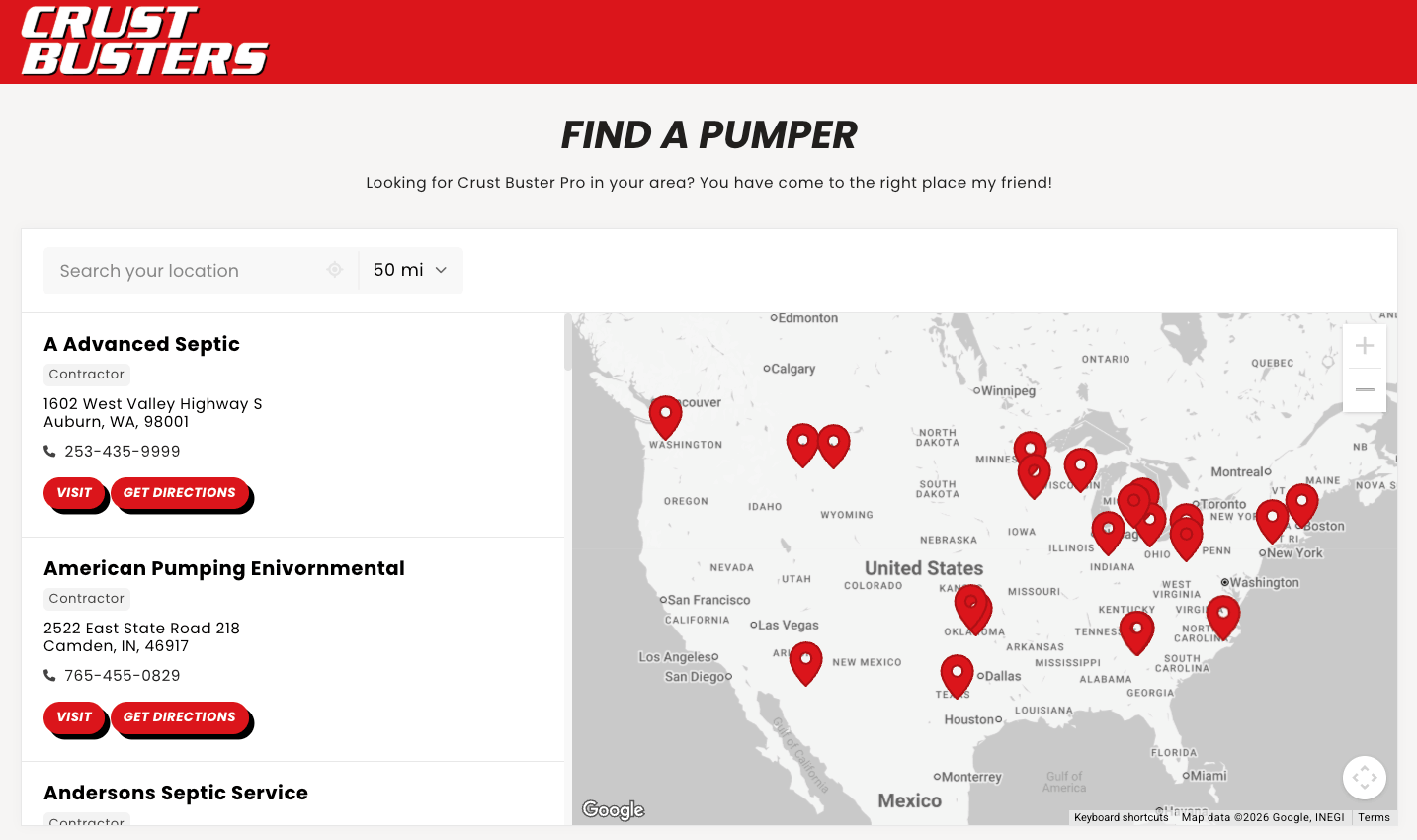
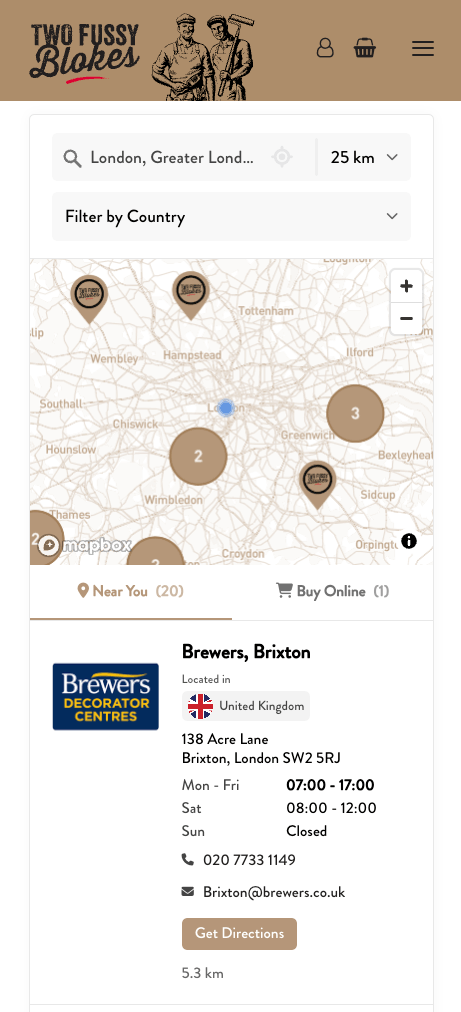
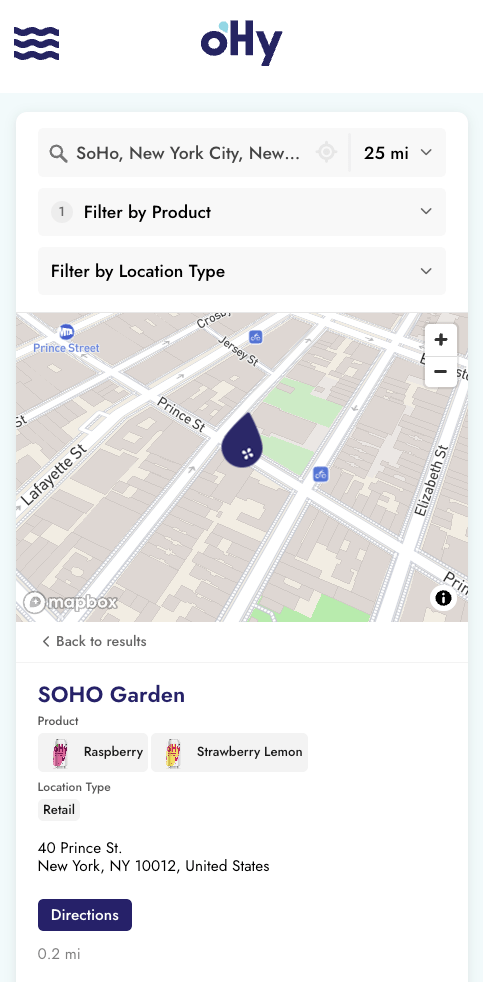
Follow this guide to connect your HubSpot company data to a searchable store or dealer locator, add filters, and keep your website map up to date. For features and examples, see the HubSpot store locator integration.
You’ll need: a Storepoint store locator account and permission to connect your HubSpot account.
In HubSpot, choose or create a company segment: a group of company records you want to show on your map. Each selected company becomes a location using its name, address, and the details you choose to sync.
Use an active segment to select companies automatically using your own rules. HubSpot keeps the segment up to date as company details change, and Storepoint picks up those changes when it syncs.
Check that the selected records have a name and full address. You can also choose All companies if you want every company on your map.
- In Storepoint, open Apps & integrations → HubSpot and enable it.
- Select Connect HubSpot, sign in, and approve the connection.
- Add a source. Choose your connection, then your company segment or All companies.
Match the HubSpot properties you want to sync to the corresponding fields in Storepoint. Include a name and address, then choose any other details you want to display. Your property names may vary depending on how you’ve set up HubSpot.
For the address, use a single property containing the full address or match the address parts separately. To let visitors filter locations, match the properties you want to use for categories to Tags, then set up your map’s filters.
- Choose how often to sync. The default is Every hour, with options starting at Every 15 minutes. You can also choose manual syncing.
- Choose how to handle removals. The default, Review removals over 50%, asks for approval before removing more than half of this source’s locations. Choose Automatically to apply removals without review.
- Save and check the first sync. Select Sync now if you chose manual syncing.
Check your locations, then follow the website embed guide. For a HubSpot website, use the HubSpot CMS embed guide.
Keep editing your location details in HubSpot. Synced changes appear on your existing website map.
Can I choose which locations appear?
Yes. Choose a company segment containing the locations you want to publish. Only the companies in that segment are included in this source. When a company leaves that segment, its location is removed from the map on the next successful sync, subject to your removal setting.
Can I show individual branches?
Yes. Include your branches’ company records in your segment, and each branch appears as a separate location using its own name and address. An active segment can select these records automatically using your rules. Branches can share the same website domain.
Have your branches organized differently in HubSpot? Contact us and we’ll help you find the best setup.
Should I use an active or static segment?
Use an active segment to keep your selection up to date automatically using your own rules. Use a static segment if you prefer to add and remove companies by hand. Both work with Storepoint.
Can I include custom HubSpot properties?
Yes. Match company properties to Storepoint fields during setup. For extra details you want to display, create a custom location field in Storepoint, then match it to your HubSpot property.
When do changes appear on my map?
Storepoint checks HubSpot on the schedule you choose. HubSpot change notifications can trigger an earlier check when automatic syncing is enabled. You can also select Sync now whenever you want to refresh your locations.
Where should I edit my locations?
Keep editing your synced locations in HubSpot. Storepoint picks up changes to the fields you’ve matched and leaves your HubSpot records unchanged.
Can I pause or stop syncing?
Yes. Pause a source to stop updates while keeping its settings. Removing the source stops syncing and keeps its existing locations in Storepoint.
Questions about your setup? Contact us—we’re happy to help.