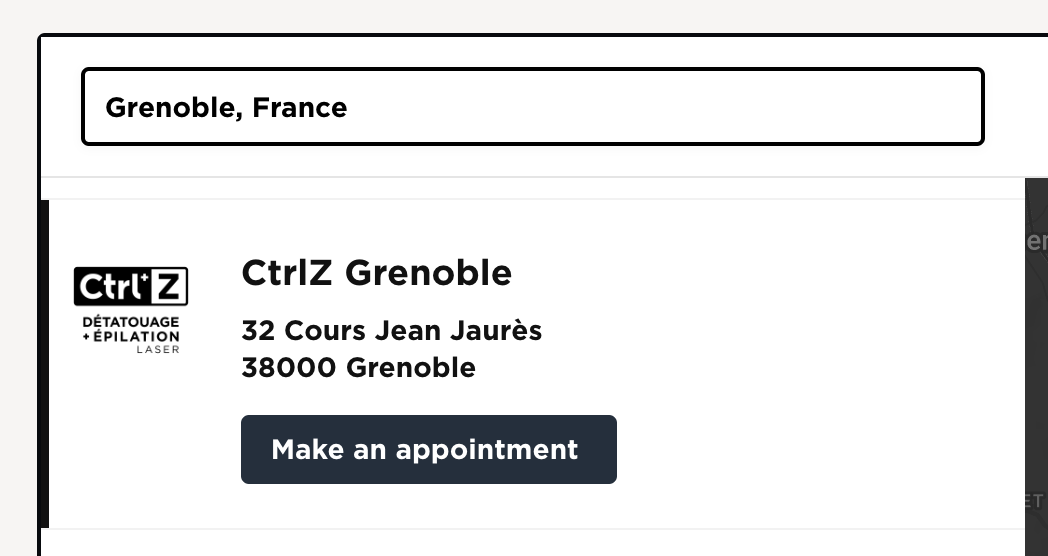
Add a "Book Now" button next to every location on your locator. Customers find a salon, clinic, fitness studio, or any service location and book the appointment without leaving the page.
Works with any booking system that gives you a link: Calendly, Acuity, Square Appointments, Vagaro, Booksy, or your own booking page. You'll need a Storepoint store locator account; if you're new, follow the Quick Start Guide first.
Start your free trial See examples
Step 1: Create a Booking Button
First, you'll set up the button that will appear on your locations.
- Go to Custom Fields in your dashboard
- Click Add A Custom Field
- Select Button as the field type
- Enter a label like "Book Now" or "Schedule Appointment"
- Pick a button color that matches your brand
- Click Save Changes
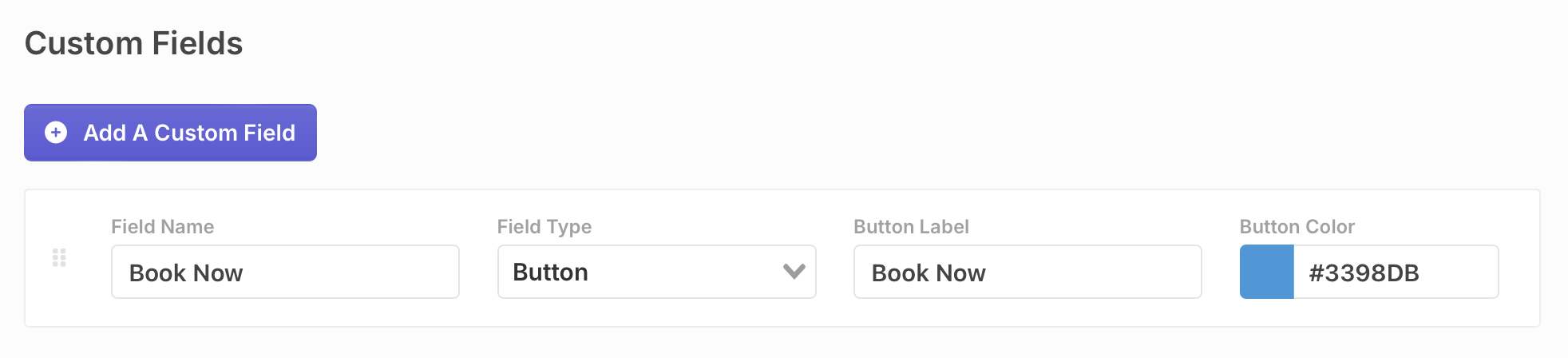
The button is set up. Next, add the booking links to each location.
Match your button color to your brand's primary action color for consistency across your website.
Step 2: Add Booking Links to Your Locations
Once you've created the button, you can add booking links for each location. The button only appears on locations where you've added a URL, so you have full control.
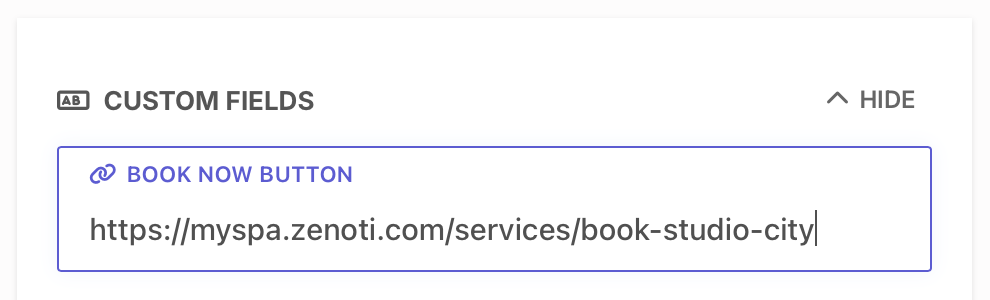
In the Dashboard
Edit any location and you'll see the new booking URL field. Paste your booking link, save.
Bulk Import
If you have many locations, import a spreadsheet with your booking URLs in a column and match that column to your new booking field. Your custom fields sit in the same dropdown as everything else.
Google Sheets Sync
Using Google Sheets sync? Add a column of booking URLs to your sheet and match it to your new booking field. Your next sync brings them in.
Google Sheets sync Pro is the easiest way to manage booking URLs across many locations. Update the spreadsheet, your locator updates with it.
Your customers can now find a location and book an appointment without leaving the page. The booking button sits right on each location card.
Common Questions
Can I have multiple booking buttons per location?
Yes. Add as many button fields as you need. Useful when you offer different types of appointments, like "Book a Consultation" and "Schedule a Service".
What booking systems does this work with?
Any system that gives you a booking URL. Calendly, Acuity, Square Appointments, Vagaro, Booksy, your own booking page, or any other platform.
Can I customize how the button looks?
You can set the button label and color in your dashboard. For advanced styling, you can also use custom CSS to perfectly match your brand.
Can I trigger popups or custom JavaScript actions?
Yes. If you have a developer on your team, use our Widget JavaScript API to listen for button clicks and trigger custom actions like booking popups, modals, or any other JavaScript behavior. This works well for booking systems that use popup embeds. Contact us if you need help setting this up.
Learn More
- Custom Fields documentation for all field types and options
- Google Sheets Sync for managing locations in a spreadsheet
- Import from Spreadsheet for bulk adding locations