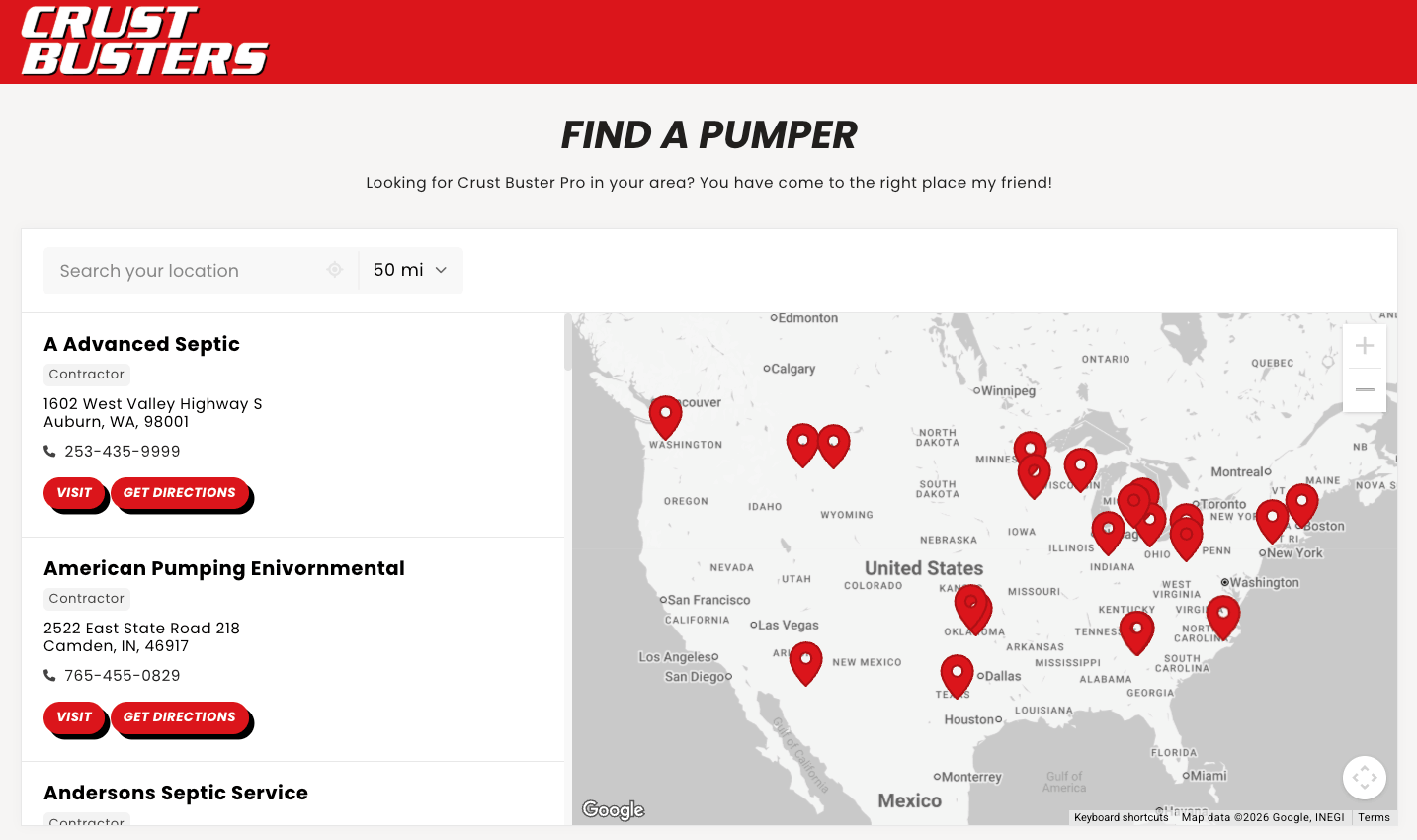
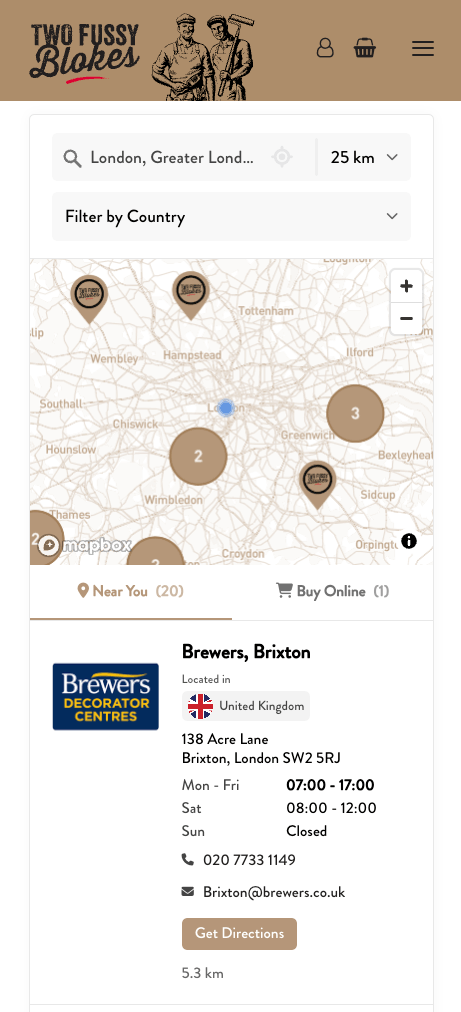
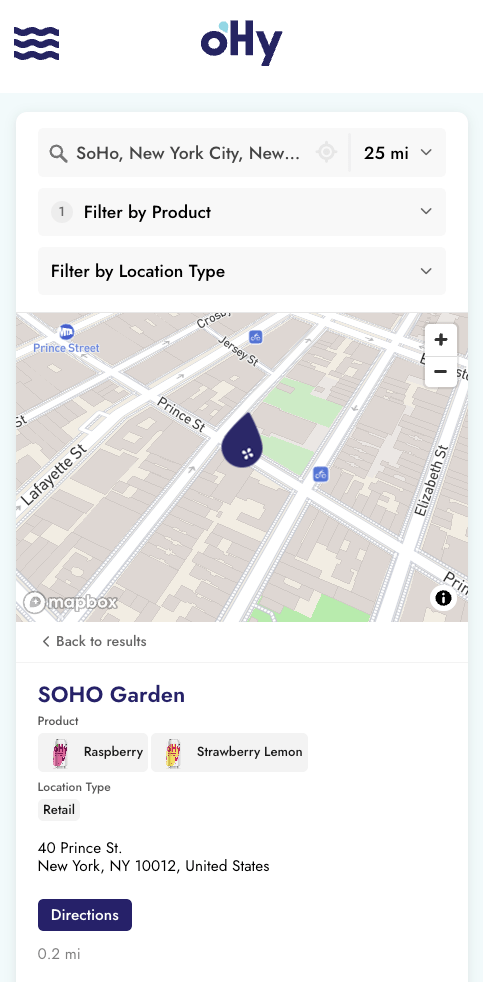
The embed code is a short piece of code that displays your Storepoint locator on a website page.
Before you start: Add your locations and connect a map provider using the Quick start guide. You also need permission to edit and publish your website.
Choose your website platform for instructions that match its editor:
If your platform is not listed, follow the general installation steps. Your website editor must allow HTML and JavaScript embed code.
- Open Install on your site in your Storepoint dashboard.
- Copy the complete embed code.
Use this code in your platform's installation guide or in the steps below.
Use these steps if your website platform does not have a separate guide above.
Open the page where you want customers to find your locations. Common page names are Find a store, Locations, and Store locator.
Add a block that accepts code. Your website editor might call it:
- Custom HTML or HTML block
- Code block or Code embed
- Embed or Embed code
- Raw HTML or Custom code
- Select the block's HTML or code mode, if the editor offers a choice.
- Paste the complete code you copied from Storepoint.
- Save the page.
Use a code block. A normal text block can show the code as text instead of displaying your locator.
- Publish the page.
- Open the published page in your browser.
- Search near one of your locations.
- Confirm that the expected location appears.
Some editors do not run embed code in their editing view. Check the published page before troubleshooting.
| What you see | What to check |
|---|---|
| Code appears as text | Paste the code into an HTML or embed block. |
| Nothing appears on the published page | Check that you copied the complete code and that the block allows JavaScript. |
| The locator appears, but the map does not load | Check your map provider setup, including allowed website addresses. |
| The map loads, but a search has no results | Search near a location in your list. Check your search radius and filters. |
After installation, location updates appear in the same locator. You do not need to paste the code again for each location change.
You can show only locations with selected tags on a page. For example, a product page can show stores that carry that product.
You can also choose a fixed language for a page. See Embed Code Options for both options.
Use the same Storepoint account when you move your website. Follow the new platform's installation guide to add your locator.
See Moving to a New Platform for the full checklist.
Contact us with your website platform, the page address, and what you see. We can help you check the installation.