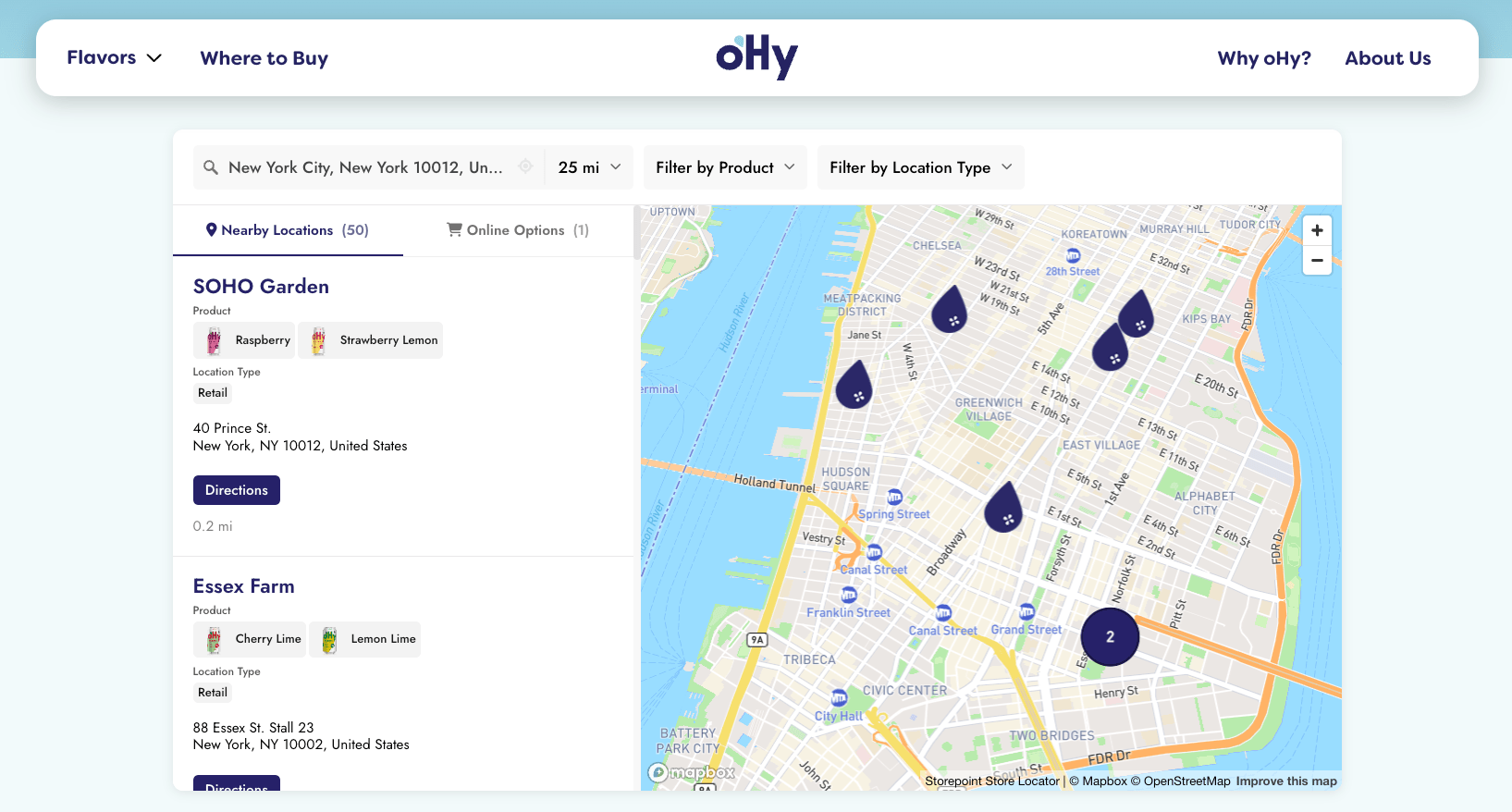
Add a beautiful, searchable map of your locations to any Squarespace page in a single paste. Your store locator for Squarespace updates straight from your dashboard whenever your locations change, so the page you built stays exactly as you built it.
Use it as a stockist or where-to-buy page, dealer map, restaurant finder, provider directory, or any other multi-location map finder with search and filters. Drops into a Code block on any Squarespace page.
Start your free trial See examples and features
Step 1: Set up your locator
- Create a Storepoint account and follow the prompts (you'll pick your map provider and a few basics), or log in if you already have one
- Add your locations: type them in, import a spreadsheet, or sync from Google Sheets
- Open Embed in the dashboard sidebar and copy your snippet
Step 2: Paste it into your Squarespace page
- In Squarespace, open Pages and pick your locator page, or create a new blank page named "Find Us" or "Locations"
- Click Edit to open the page editor
- Click the + button where you want the locator to appear
- Choose Code under the "More" section
- Paste your Storepoint snippet into the Code block
- Click outside the block to close it
Step 3: Save and view your page
- Click Save in the top right
- Open your live page to see your locator
Code blocks sometimes don't render inside the Squarespace editor. Save and view your live page to see your locator.
That's the full setup. From here, every location update flows through your Storepoint dashboard. Your Squarespace page stays as you built it.
Make it full width
Squarespace often holds your content to a narrow column. To let your locator fill the page:
- In the editor, click the section that holds your Code block
- Click the pencil icon to open section settings
- Set Width to Full or Full Bleed
- Save
Match your template
Style it yourself from the dashboard: map style, marker pins, colors, and layout. Full CSS access is open on every plan.
Send us your Squarespace site link and we'll match the locator to your template. Fonts, colors, background, layout, the lot. Free on every plan, no extra charges. See examples →
Common questions
Which Squarespace versions does this work on? Squarespace 7.0 and 7.1 both support the Code block, in the Fluid Engine and the Classic Editor. The install above applies to every template on either version.
Stuck on something?
Email [email protected] with a link to your page. We're a small team and we read every message ourselves. No cookie-cutter responses.
What to explore next
- Map styles, custom markers, and pins from the dashboard
- Filters and tags so visitors can narrow results by product, brand, or service
- Embed options for filtered or multilingual locators
- Store locator examples for inspiration