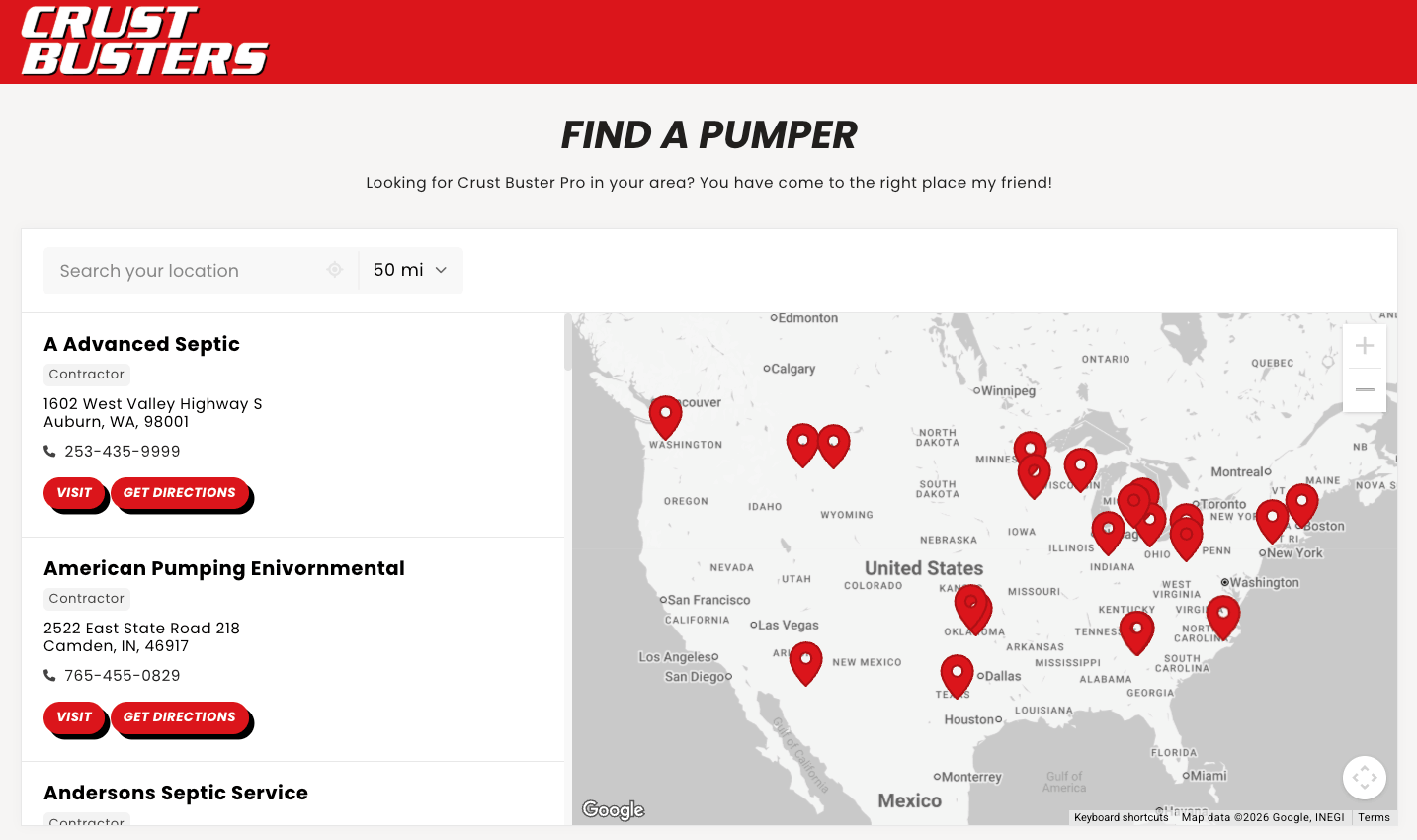
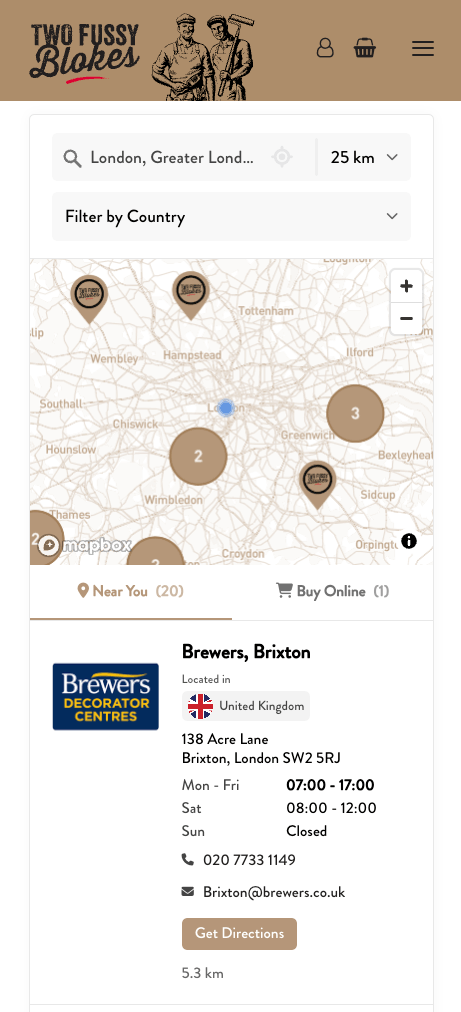
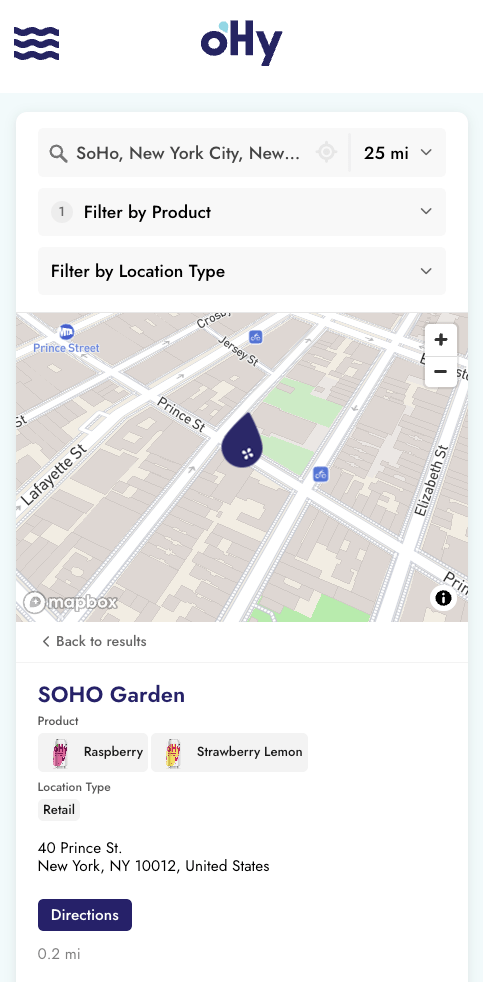
Distributor reports work as-is in Storepoint. Drop in your UNFI, KeHE, DOT, or McLane export and the locator deduplicates retailers, combines product placements into tags, and remembers your column mapping for next time.
This guide is for brands working from distributor sales reports. If your retailer data lives in a CSV, CRM export, or Google Sheet, see the Where-to-Buy Product Locator guide instead, the simpler setup applies.
Start a free 7-day trial See examples
Distributor reports usually have one row per product per retail location:
| Store Name | Store Address | Product |
|---|---|---|
| Whole Foods Market | 525 N Lamar Blvd, Austin TX | Habanero Reserve |
| Whole Foods Market | 525 N Lamar Blvd, Austin TX | Smoky Chipotle |
| Sprouts Farmers Market | 4030 S Lamar Blvd, Austin TX | Habanero Reserve |
| Sprouts Farmers Market | 4030 S Lamar Blvd, Austin TX | Organic Hot Sauce |
That format imports as-is. Storepoint deduplicates rows with the same store name and address into a single map pin and combines all the product values into tags. Whole Foods Austin becomes one pin tagged Habanero Reserve and Smoky Chipotle. Sprouts Austin becomes one pin tagged Habanero Reserve and Organic Hot Sauce.
No pivot tables. No data transformation. No manual cleanup.
Set up one import per distributor feed. Each import remembers your column mapping, so the next report you get goes in with a drag and drop.
- Open Imports & Syncs
- Click New Import or Sync
- Name it after the distributor (e.g.,
UNFI Insights,KeHE CONNECT,DOT Foods) - Upload your report
Storepoint reads your report and shows you which of its fields each column lines up with. Confirm the matches, pick a field for anything left over, and skip the rest. The mapping is saved with the import, so future uploads use it automatically.
| Distributor column | Maps to |
|---|---|
| Store Name | Name |
| Store Address (or City/State/Zip combined) | Address |
| Product (or SKU, Item Description, UPC) | Tags |
| Invoice #, Cases Shipped, Velocity, Period | Skip (Storepoint ignores anything you don't map) |
If your report splits address across multiple columns (Address, City, State, Zip), map each to the corresponding Storepoint field. The geocoder handles the rest.
If your report uses internal SKU codes like SKU-4821, map it to Tags anyway. Then in Tags & Filters set a customer-facing label per tag (e.g., "Habanero Reserve Hot Sauce"). Shoppers see the friendly name; your data stays clean.
Storepoint geocodes every address and merges duplicate rows. A national report with 50,000 rows turns into 8,000 pins (or however many unique store-name + address combos exist), each tagged with the products carried at that location.
To refresh, upload a new report to the same import. Only that report's locations change, and your column mapping doesn't need redoing.
Analytics → Year Over Year Sales. Set the period to 52 weeks. Include both East and West DCs for full coverage. Export as CSV.
Connect Data → Reporting. Either the Brand Item Location report or the Full POD Vendor report contain the store-level detail you need. Export as CSV.
Request your retailer location report from your DOT sales rep, or pull from their supplier portal. Includes redistribution points and end-retailer data.
Delivery and order reporting. Store-level data is available by item and location.
Most regional and DSD distributors provide Excel or CSV reports with store names, addresses, and products shipped. Format varies; the import handles them all.
If your broker compiles retail placement data across multiple distributors, that report imports the same way. Set up an import for it and upload.
Make a separate import per distributor: one for UNFI, one for KeHE, one for your DSD routes, one for broker reports. Each remembers its own column mapping. When a fresh report arrives from any distributor, drop it into that import and only those locations change.
If a retailer appears in more than one distributor's feed (e.g., the same Whole Foods is in both UNFI and KeHE), Storepoint merges them by store name + address. The pin shows tags from both reports combined.
My distributor report has thousands of rows. Is that a problem?
No. Storepoint handles large datasets. Brands with distribution across thousands of retail doors use Storepoint without issues.
My report has extra columns like Cases Shipped, Velocity, or Invoice Number. Do I need to clean them out?
No. Skip them in the column mapping step and Storepoint ignores them.
The same store appears in two distributor reports. Will I get duplicate pins?
No. Storepoint deduplicates by store name + address. The same Whole Foods showing in UNFI and KeHE becomes one pin with tags from both reports merged.
Can I have a "Distributor" filter so shoppers see which distributor each retailer goes through?
Usually you wouldn't show this to shoppers (they don't care about UNFI vs KeHE). But yes, you can. Map a distributor column to Tags and create a hidden tag group called Distributor. The tag drives sorting or markers internally without showing in the visible filter dropdown. See tag visibility settings.
My distributor's report doesn't include addresses, just store names. What now?
You'll need to add addresses. Most brands do this once: pull the store list from the distributor, look up each retailer's address (Google Maps, the chain's store locator, or your own records), and import that combined file. After the first setup, subsequent reports update existing locations and only new stores need addresses.
How often should I re-upload?
Whatever cadence the distributor releases new data. Quarterly is common. Some brands go monthly. Re-uploads are quick: same import, same column mapping, drop in the new file.
Can I sync this automatically instead of uploading manually?
If you can export your distributor report into a Google Sheet, yes, see Google Sheets Sync. Direct integrations with UNFI Insights, KeHE CONNECT BI, and the others aren't available since most distributor platforms don't offer public APIs for retailer-level data. Uploading the report is the standard flow.
Can I use this on Shopify product pages?
Yes. Storepoint works on Shopify and every major platform. After importing your distributor data, follow the Where-to-Buy guide for embedding and product filtering.
- Where-to-Buy Product Locator for the broader where-to-buy setup, embedding, and product filtering
- Filters & Tags for tag groups, customer-friendly labels, and filter logic
- Imports & Syncs for managing multiple distributor feeds
- Import Locations for the underlying import flow
- Google Sheets Sync if your retailer data lives in a sheet you maintain