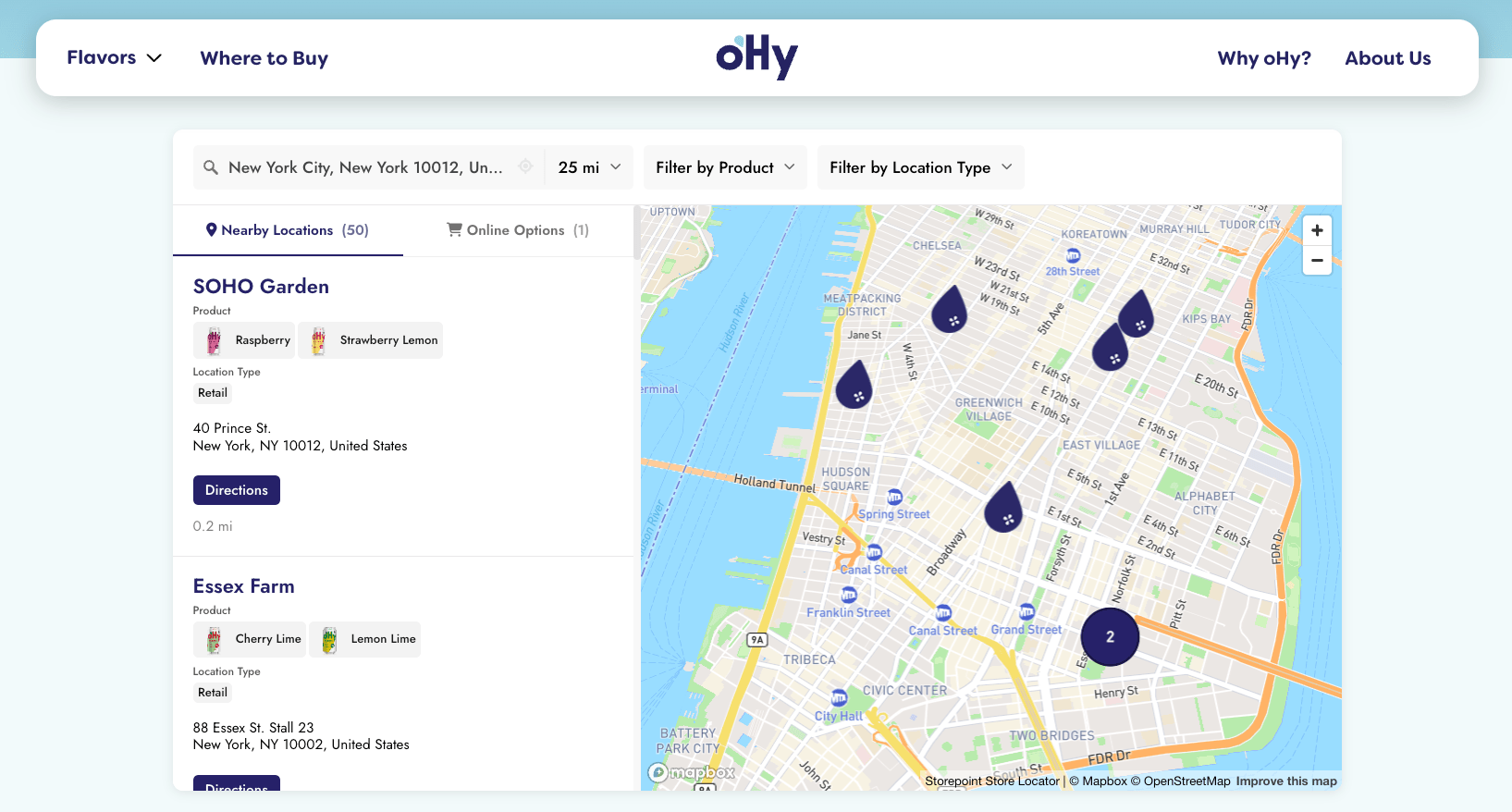
Add a store locator map to any WordPress page in a single paste. Your Storepoint locator updates straight from your dashboard whenever your locations change, so the site you built stays exactly as you built it.
Use it as a store locator, dealer locator, stockist page, restaurant finder, or provider directory for clinics, salons, and other service businesses. Drop in the Storepoint WordPress plugin's Gutenberg block, or paste the embed into Gutenberg, the Classic Editor, or any page builder. Works on every WordPress theme.
Start your free trial See examples and features
Step 1: Set up your locator
- Create a Storepoint account and follow the prompts (you'll pick a map provider and a few basics), or log in if you already have one
- Add your locations: type them in, import a spreadsheet, or sync from Google Sheets
- Open Embed in the dashboard sidebar and copy your snippet
Step 2: Pick how to add it
Two ways. Pick the plugin for a one-click block in Gutenberg, or paste the embed code for any page builder or a plugin-free setup.
The WordPress plugin
Adds a Storepoint Store Locator block to Gutenberg, with built-in settings for language, filters, and display.
- In your WordPress admin, go to Plugins > Add New and search for "Storepoint"
- Install and activate the Storepoint Store Locator plugin
- Open Settings > Storepoint and paste your Public Locator Token (find it on the Embed page in your dashboard)
- Edit any page, add the Storepoint Store Locator block, and publish
Paste the embed code
A good fit for page builders, or anyone keeping their plugin list short.
Gutenberg (Block Editor)
- Edit your page, click the + to add a block, and search for Custom HTML
- Paste your Storepoint snippet into the block
- Click Publish or Update
On a new line in the editor, type /html and hit Enter. Custom HTML block, instantly.
Classic Editor
- Click the Text tab in the top right (not Visual)
- Paste your Storepoint snippet
- Click Publish or Update
If you switch to Visual after pasting, the editor will rewrite or strip the snippet. Paste in Text mode and save without flipping back.
Page builders
Look for an HTML or code element in your builder:
- Elementor: drag in the HTML widget
- Divi: add a Code module
- WPBakery: add a Raw HTML element
- Beaver Builder: drop in an HTML module
- Bricks or Oxygen: use a Code Block element
Paste your Storepoint snippet in, then save.
Step 3: View your live page
Open the page on your site and try a search. You should see your locations on the map and in the list.
If you use WP Rocket, W3 Total Cache, or LiteSpeed Cache, purge your cache once after pasting. Some caches hold an old version of the page until you do.
That's the full setup. From here, every location update flows through your Storepoint dashboard. Your WordPress page stays as you built it.
Make it full width
WordPress themes often box pages into a narrow column. Here's how to give the locator the full page width:
- Look for a Full Width or No Sidebar template under Page Attributes in the page sidebar
- In Gutenberg, set the page Layout to "Full width" if your theme exposes it
- In Elementor, mark the section as Stretch Section in the section's Layout settings
- In Divi, set the row width to 100% and section padding to 0
Match your theme
Style it yourself from the dashboard: map style, marker pins, colors, layout, custom CSS. Full CSS access is open on every plan.
Send us your WordPress site link and we'll match the locator to your theme. Fonts, colors, header height, button shapes. Free on every plan. See examples →
Got a question?
Drop us a line at [email protected] with your page link. We answer everything ourselves, no ticketing system in the way.
Take it further
- Filters and tags so visitors can narrow by product, brand, or service
- Map styles, custom markers, and pins from the dashboard
- Custom CSS for full control over the look
- Set up a multilingual store locator with WPML on a WordPress site that uses WPML
- Embed options for filtered or multilingual locators
- Real WordPress locators for inspiration