- About 10 minutes
- One prompt
- No coding
- Easy to undo
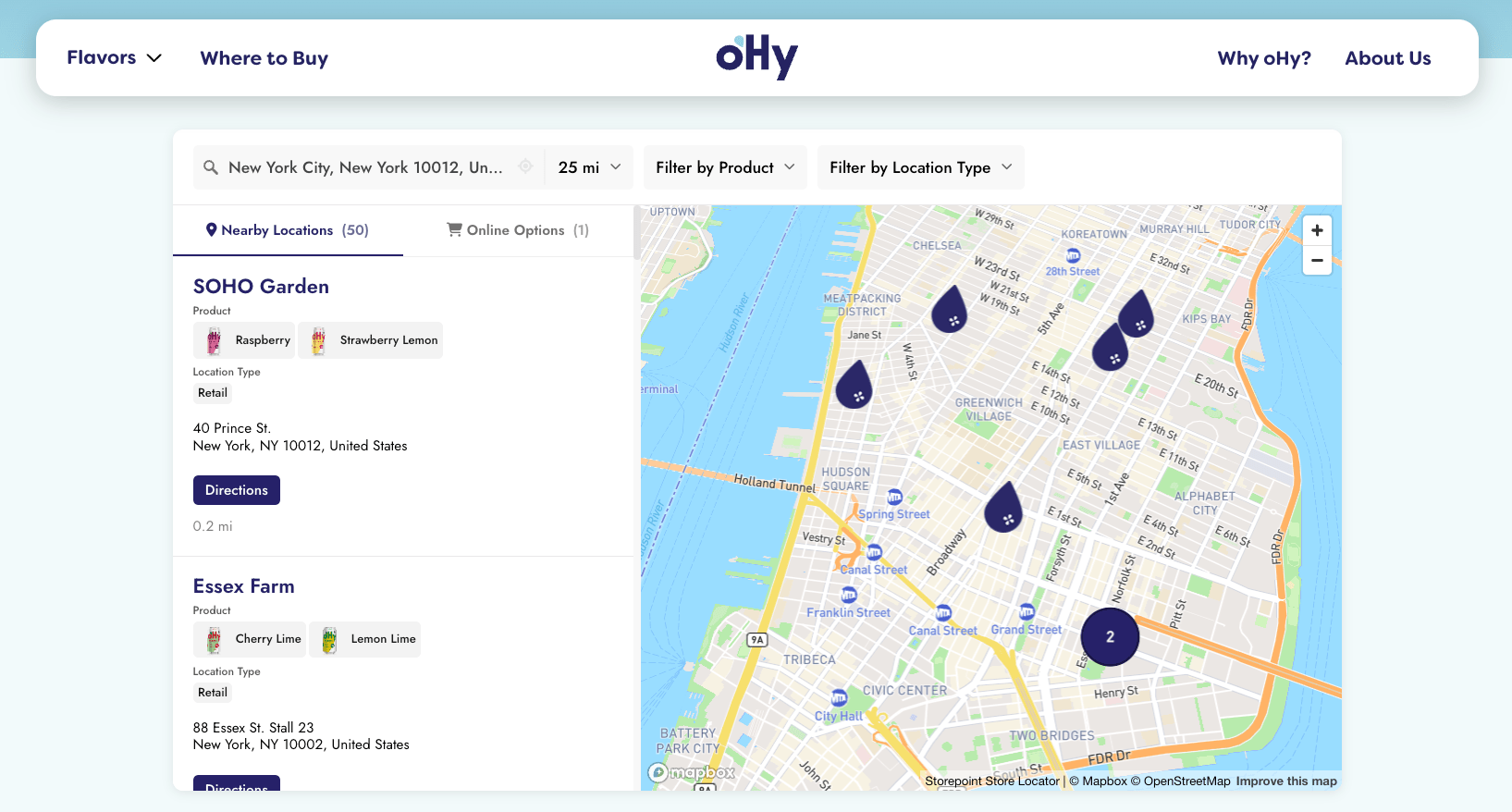
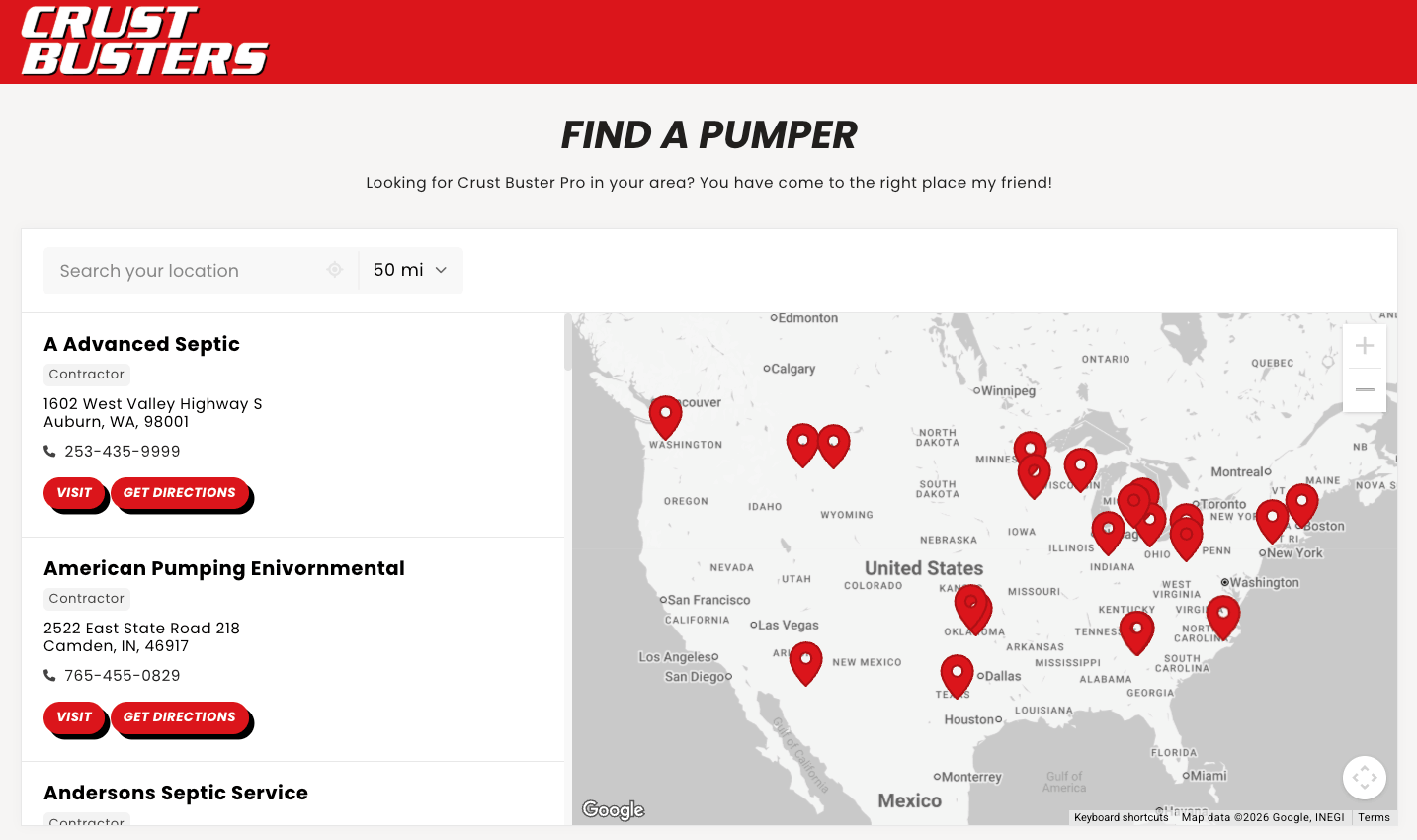
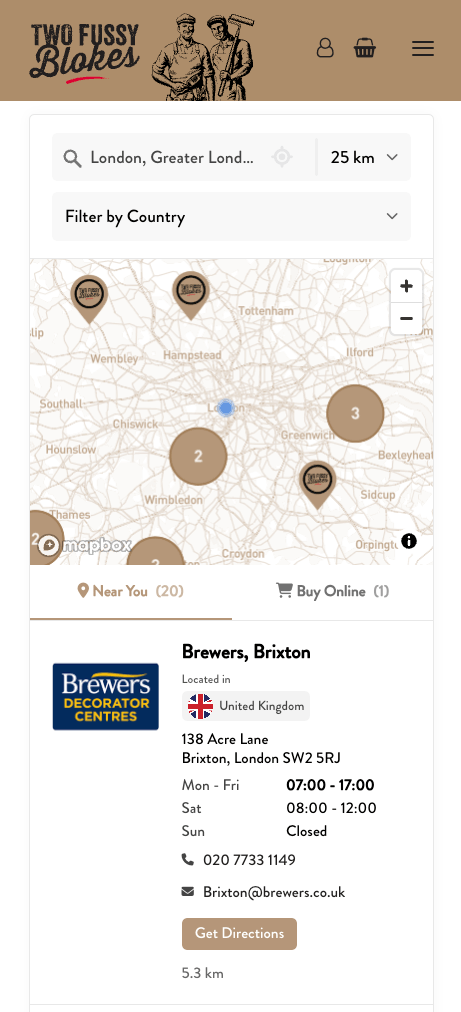
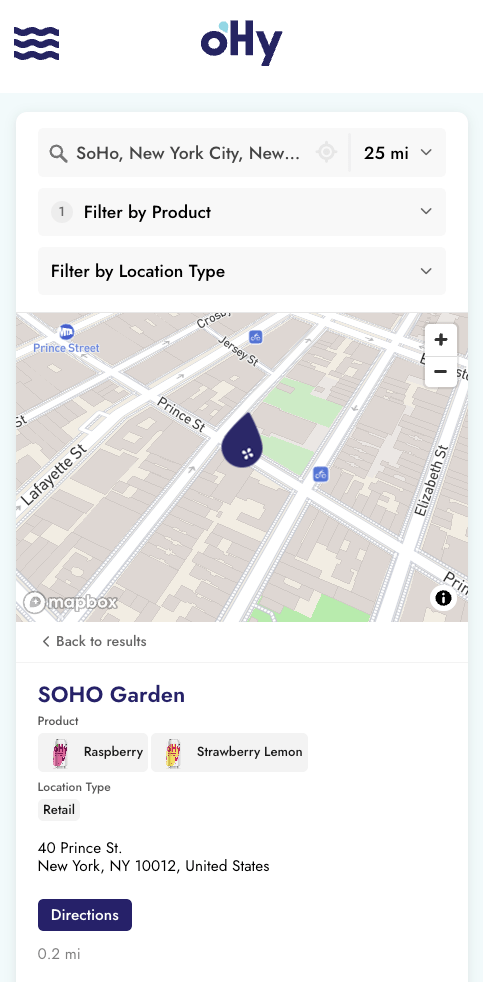
Lovable, Bolt, and v0 usually build React apps, and v0 usually builds with Next.js. Storepoint goes into any of them as one component. You paste one prompt, your AI tool adds a Find a store page, and you manage your locations in Storepoint. Your AI tool doesn't need to build a map, a search box, or a database.
You need:
- A Storepoint account with your locations added and a map provider connected. New to Storepoint? Start your free trial, then follow the Quick start.
- A project in Lovable, Bolt, or v0.
- In your Storepoint dashboard, open Install on your site.
- Select the embed code. Storepoint copies it for you.
It's safe to paste into an AI tool. The embed code has no passwords or keys in it.
The prompt gives your AI tool the exact code to use, so it doesn't guess or build a locator of its own.
- Select Copy code on the prompt below.
Add a store locator page to this site with Storepoint.

Don't build a map, a search box, or a location list yourself, and don't
install an npm package. Storepoint draws the whole locator from one script.

Don't paste my embed code into the page as HTML. Read two things from it:
my widget ID (the first value in quotes after "new StorepointWidget(") and
my options (the { } after '#storepoint-widget').

1. Create a StoreLocator component with the code below, in the folder this
   project uses for components. If this is a Next.js project, add
   'use client' as the first line of the file. If the project uses
   JavaScript instead of TypeScript, remove the types.
2. Add a page at /stores with the title "Find a store". It renders
   <StoreLocator widgetId="MY_WIDGET_ID" />. If my options are not empty,
   pass them as the options prop.
3. Add a "Find a store" link to the main navigation.
4. Don't change anything else.

If I ask you to restyle the locator later: its HTML is built in the browser,
so you won't find it in this project's files. Read
https://storepoint.co/docs/customization/css-reference.md for every CSS
variable and class. Change the variables on .storepoint-container first,
and write the rules under .store-locator, the component's container.

My Storepoint embed code:

PASTE YOUR EMBED CODE HERE

The StoreLocator component:

```tsx
import { useEffect, useRef } from 'react';

type StorepointInstance = { load: () => void; destroy: () => void };

declare global {
  interface Window {
    StorepointWidget?: new (
      widgetId: string,
      container: HTMLElement,
      options?: Record<string, unknown>
    ) => StorepointInstance;
  }
}

let scriptPromise: Promise<void> | undefined;

function loadStorepoint(): Promise<void> {
  if (window.StorepointWidget) return Promise.resolve();
  if (scriptPromise) return scriptPromise;

  scriptPromise = new Promise((resolve, reject) => {
    const script = document.createElement('script');
    script.src = 'https://widget.storepoint.co/embed.js';
    script.async = true;
    script.onload = () => resolve();
    script.onerror = reject;
    document.head.appendChild(script);
  });

  return scriptPromise;
}

export default function StoreLocator({
  widgetId,
  options,
}: {
  widgetId: string;
  options?: Record<string, unknown>;
}) {
  const containerRef = useRef<HTMLDivElement>(null);

  useEffect(() => {
    let instance: StorepointInstance | undefined;
    let cancelled = false;

    loadStorepoint().then(() => {
      const Widget = window.StorepointWidget;
      if (cancelled || !containerRef.current || !Widget) return;
      instance = new Widget(widgetId, containerRef.current, options);
      instance.load();
    });

    return () => {
      cancelled = true;
      instance?.destroy();
    };
  }, [widgetId]);

  return (
    <div
      ref={containerRef}
      className="store-locator"
      style={{ width: '100%', minHeight: '500px' }}
    />
  );
}
```
Want a different page name? Change /stores and Find a store in the prompt before you send it. Where to buy and Find a dealer work well too.
- Open your project in Lovable, Bolt, or v0.
- Paste the prompt into the chat.
- Replace
PASTE YOUR EMBED CODE HEREwith your embed code. - Send the prompt.
Don't like the result? Go back to the previous version in your AI tool's history. Your Storepoint account doesn't change.
Before you check: your AI tool's preview runs on its own web address, not your site's. If your map key allows only your site's address, the locator shows but the map stays blank in the preview. Open the preview in its own tab, copy the address, and add it to your key's allowed URLs (Mapbox or Google Maps). Add your published address too. Don't ask your AI tool to fix a blank map. The cause is the key setting, not the code.
- In the preview, open the new Find a store page.
- Search near one of your locations.
Check: Your locations show in the results and on the map. Map not loading? See If something doesn't appear.
That's it. Your locator is live.
From now on, add and change locations in Storepoint. Your site shows each change in seconds, with no new prompt and no new deploy.
- The locator shows, but the map doesn't load. Your map key may allow only your main website's address. Add your preview and published addresses to the key's allowed URLs. See the steps for Mapbox or Google Maps. For Google Maps, the Fix Errors page in your dashboard lists the addresses your key blocked.
- Nothing shows on the page. Ask your AI tool: "Check that the widget ID on the Find a store page matches the one in my Storepoint embed code."
- You see the embed code as text on the page. Ask your AI tool to remove it and use the StoreLocator component from the prompt.
- Your AI tool built its own map. Go back to the version before the prompt. Then send the prompt again, with no changes except your embed code.
Email us with your page address, and we'll help you sort it out.
You can have a second locator page, like dealers on one page and retailers on another.
Add a filtered locator pageUses the same component. One more prompt.
- In Install on your site, select Filtered embed code.
- Select your tags or language.
- Select the filtered embed code to copy it.
- Send this prompt to your AI tool, with your filtered embed code at the end:
Add another page at /dealers that renders the StoreLocator component.
Use the widget ID and the options from this Storepoint embed code:

PASTE YOUR FILTERED EMBED CODE HERE
For more about tags and languages, see Embed code options.
Change colors, fonts, pins, and map style in your Storepoint dashboard. You don't need a new prompt for that.
To have your AI tool restyle the locator in your site's code, send this prompt with what you want changed:
Restyle the Storepoint store locator on the Find a store page.

The locator's HTML is built in the browser by Storepoint's script, so it
isn't in this project's files. Before writing any CSS, read
https://storepoint.co/docs/customization/css-reference.md for every CSS
variable and class.

- Change the variables on .storepoint-container first. Use classes only
  for changes no variable covers.
- Write the rules under .store-locator, the StoreLocator component's
  container, in the project's global stylesheet.
- Don't change the StoreLocator component or the embed code.

What I want: DESCRIBE THE LOOK YOU WANT
If your AI tool can't open web pages, open the plain-text CSS reference, copy all of it, and paste it into the chat with the prompt.
Send your site's address to [email protected]. Our team matches the locator to your fonts, colors, and layout. It's included with every plan.
Can Lovable build a store locator?
Yes. Lovable can build a map with pins, a search box, and a results list from a prompt. After launch, each new feature or fix is another prompt, test, and publish, and someone looks after geocoding, opening hours, and map library updates. To skip that, add Storepoint with the prompt on this page. Lovable adds one component, and your team updates locations in the Storepoint dashboard.
How do I add a store locator to a Bolt site?
Copy your embed code from Install on your site in Storepoint. Paste the prompt from this page into Bolt's chat, replace PASTE YOUR EMBED CODE HERE with your embed code, and send it. Bolt adds a StoreLocator component and a Find a store page. Check it in the preview, then publish. The same prompt works in Lovable and v0.
Does the locator work in a v0 or Next.js app?
Yes. The prompt tells v0 to put 'use client' at the top of the component, so it runs in the browser. The server renders an empty container, and the locator loads in the browser. You don't need dynamic imports or extra setup. Developers can read the React and Next.js guide for the same component as a hook, with events.
Can Lovable make a store locator for my Squarespace, Shopify, or WordPress site?
You don't need Lovable for that. A Lovable app is a separate site, so a locator built there doesn't sit inside your Squarespace, Shopify, or WordPress pages. Storepoint adds to those platforms, and most others, with one embed code. Follow the guide for your platform. Plans start at $25/month, with a 7-day free trial.
- Set up filters and tags so visitors can find the right kind of location
- Change the locator's settings from your dashboard
- React and Next.js guide for developers, with events
- Widget JavaScript API for filters, languages, and custom map layers from code